Platform user guide
Step-by-step instructions for everything the platform can do — from entering a competition to running a federation. Each section is tagged with the role it is written for; use the filter to narrow the list down to yours.
Role:
Getting started: signing in
AthleteTeam captainOrganizerFederation adminRegistration, signing in, and what appears in the interface once you are authenticated.
- 1
Click “Log in” in the top-right corner. If you do not have an account yet, go to registration from the login page.
- 2
Once signed in, a notifications bell and your name with an avatar appear in the top-right corner.
- 3
The menu under the avatar gives access to “My team” (if you belong to one) and to signing out.
- 4
If you hold management rights, a “Management” item appears at the bottom of the left-hand menu.
Note: Create and edit buttons only appear for users who hold the matching rights. If a button is missing, contact your federation administrator.
Roles and permissions
OrganizerFederation adminRights are granted separately at federation level and per individual competition.
- 1
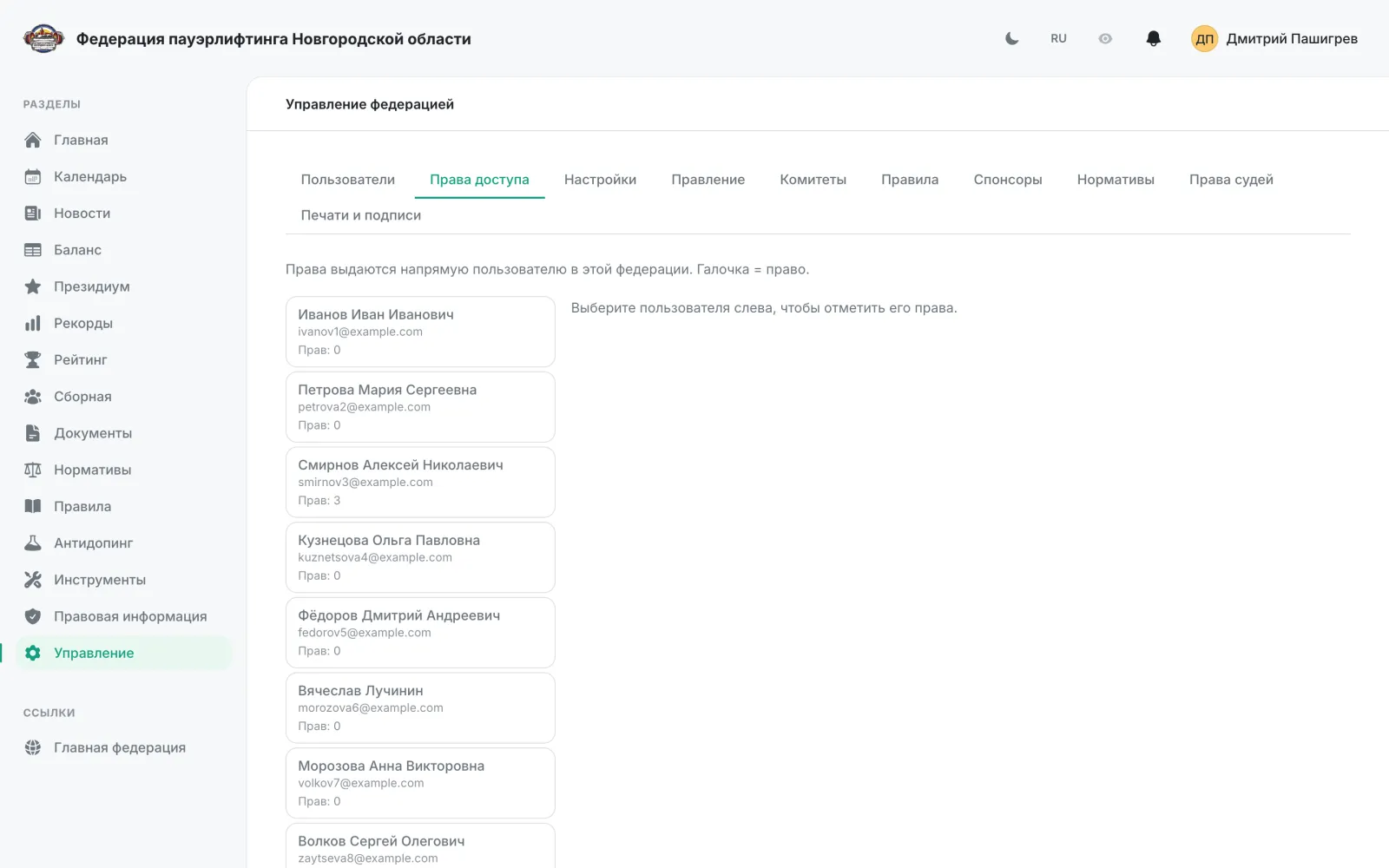
Federation rights are granted under “Management” → the “Permissions” tab, which also shows how many rights each user holds.
- 2
Rights for a specific event — editing, schedule, judging and entries — are checked separately and decide which buttons appear on the competition page.
- 3
A judge can be granted a limited set of event rights: working with entries and the schedule.
Note: A regional federation site manages only its own events; competitions from other regions open in read-only mode.
Creating a competition
OrganizerA six-step wizard, from the name and dates through to judging requirements for teams.
- 1
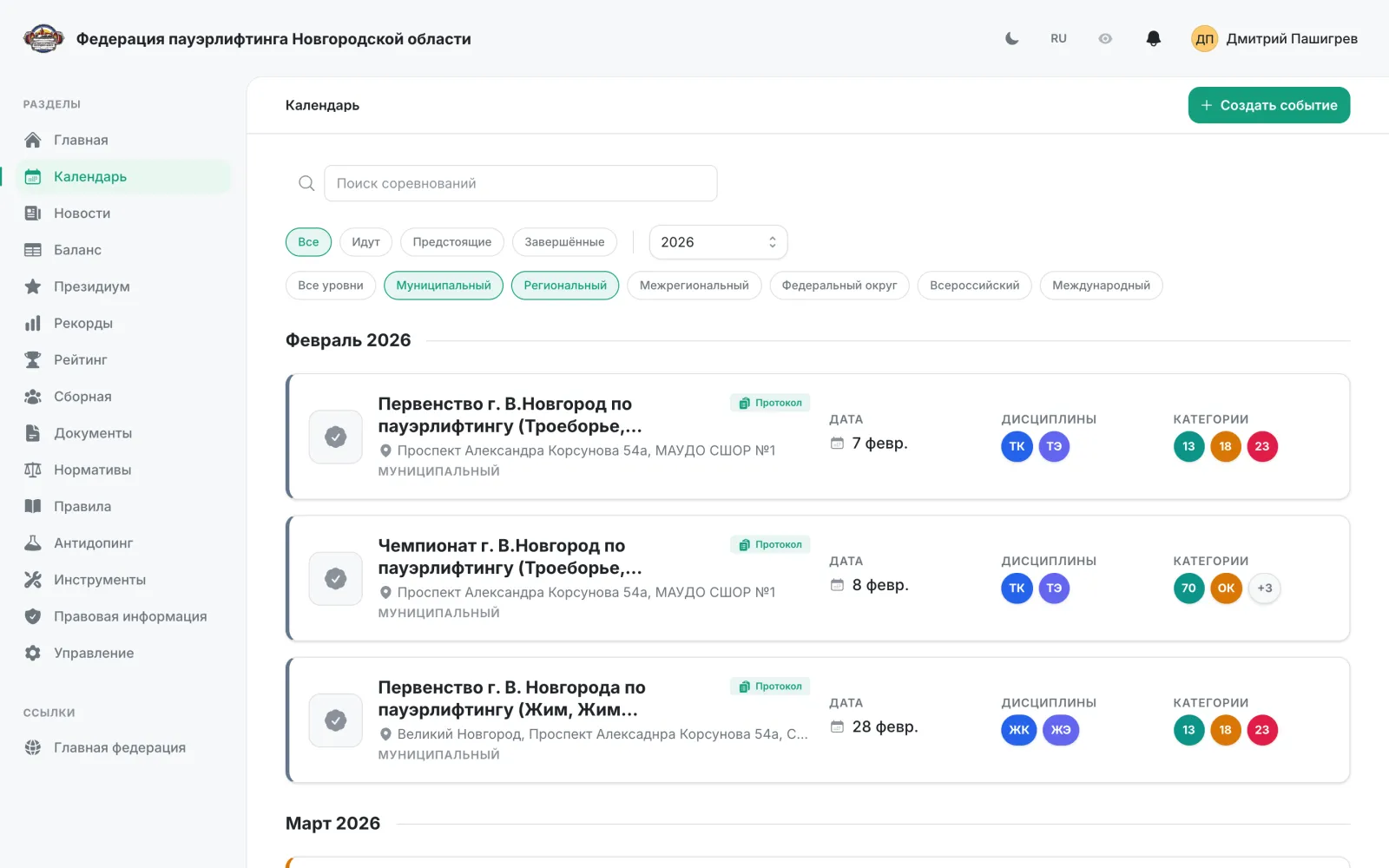
Open “Calendar” and click “Create event”.
- 2
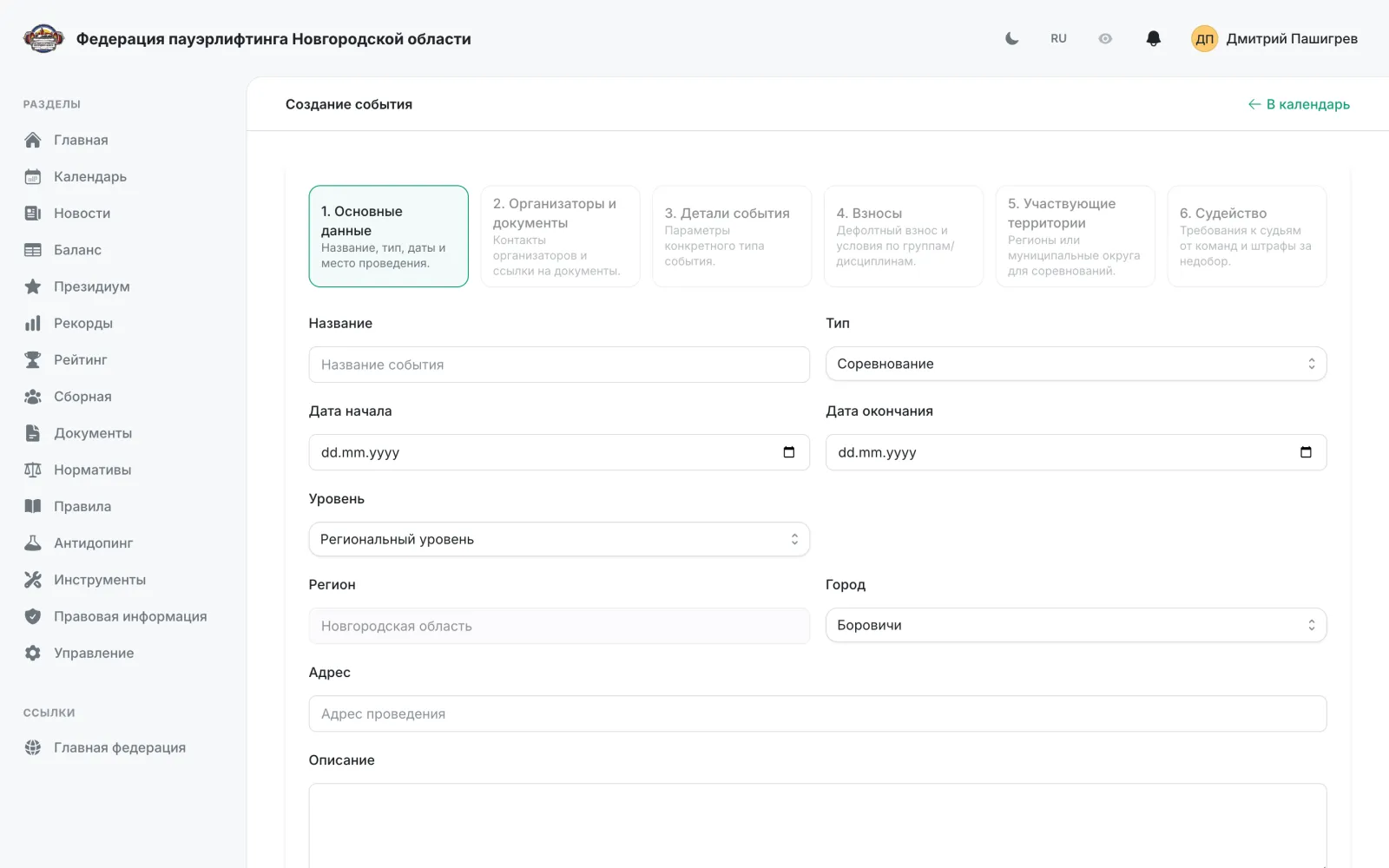
Step 1 “Basic details”: name, event type, start and end dates, level, region, city, address and description.
- 3
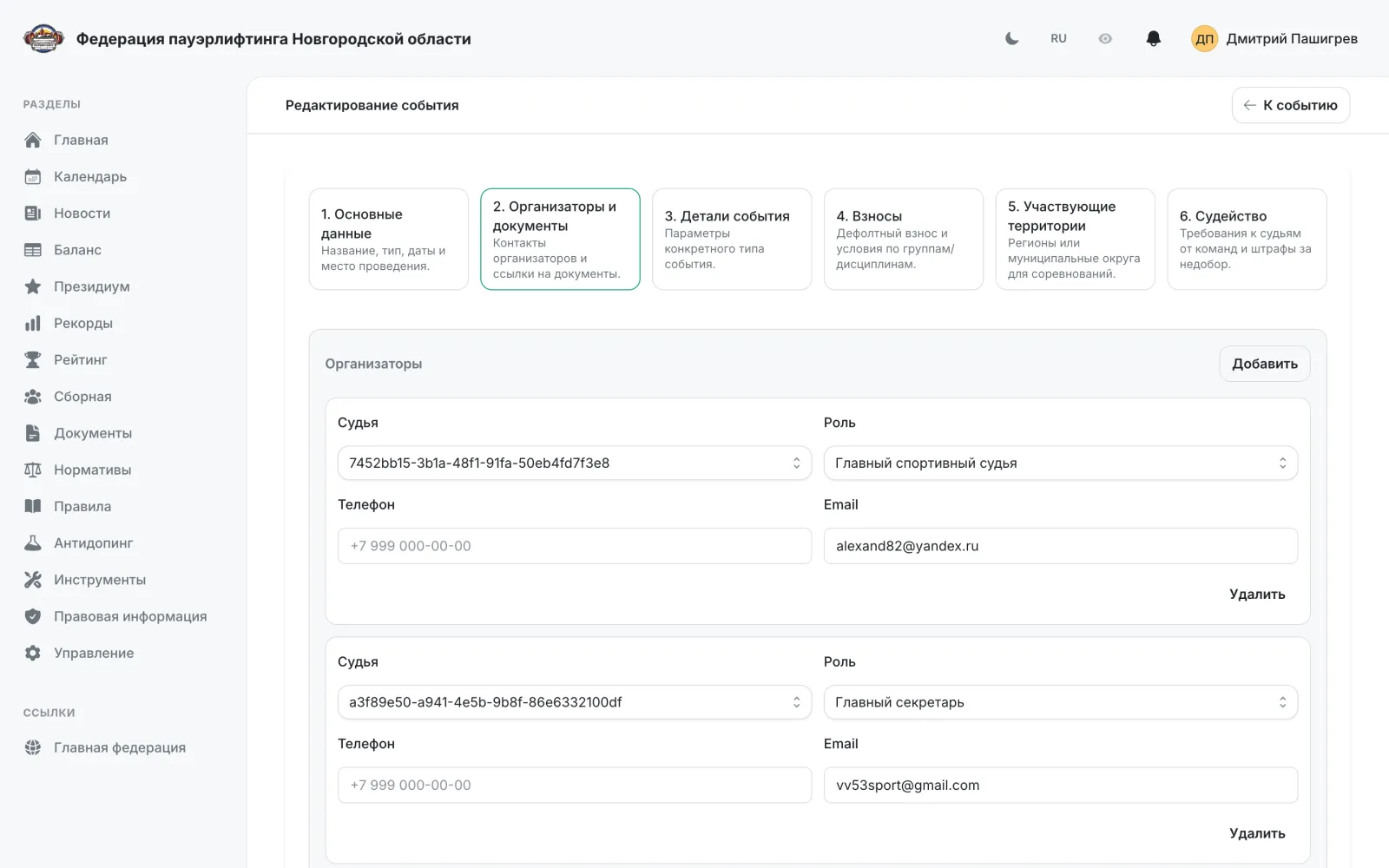
Step 2 “Organizers and documents”: head referee and chief secretary, contact phone and email, plus the regulations, schedule, poster and final protocol.
- 4
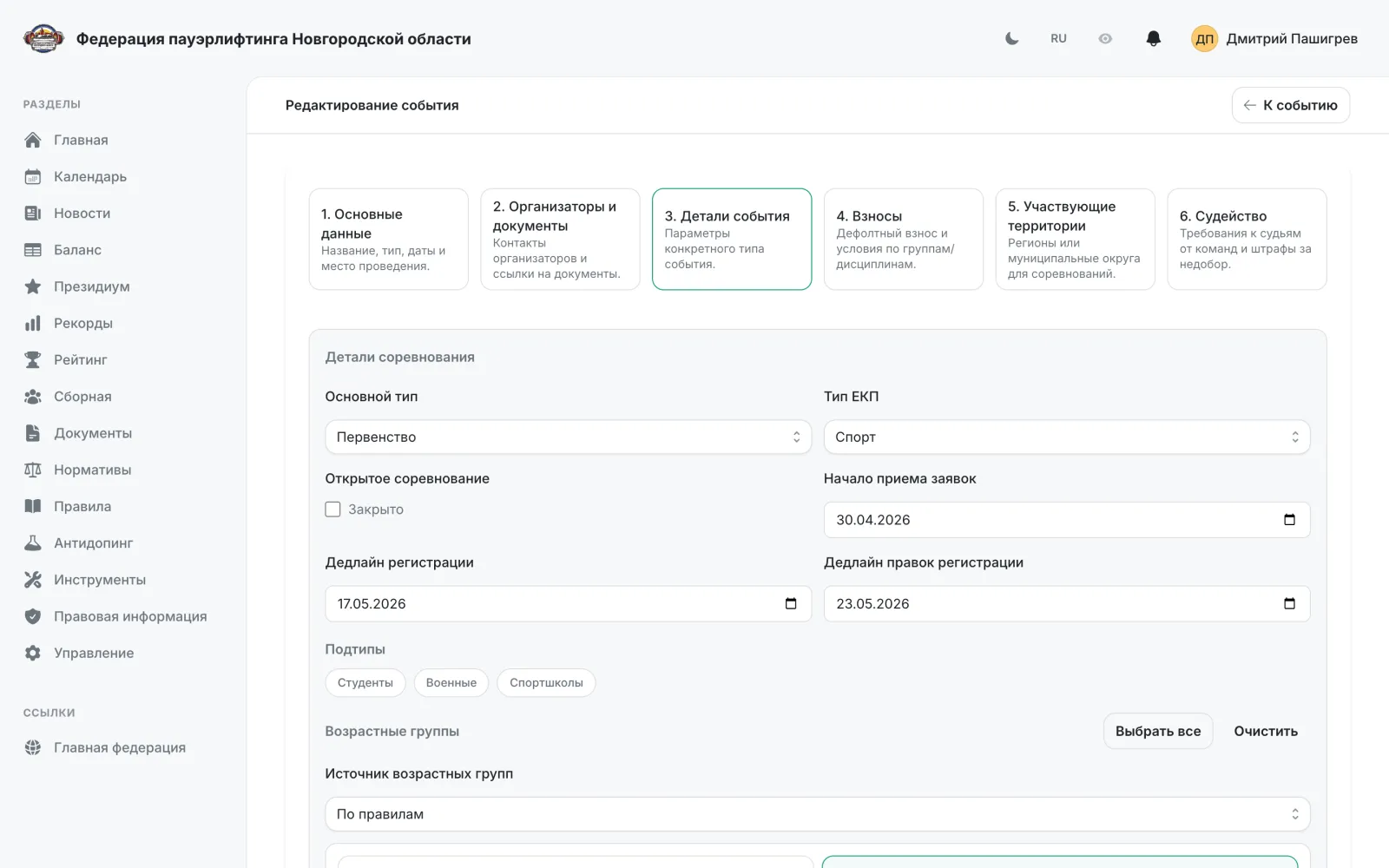
Step 3 “Event details”: calendar type, whether the competition is open, entry deadlines, age groups, weight categories and disciplines.
- 5
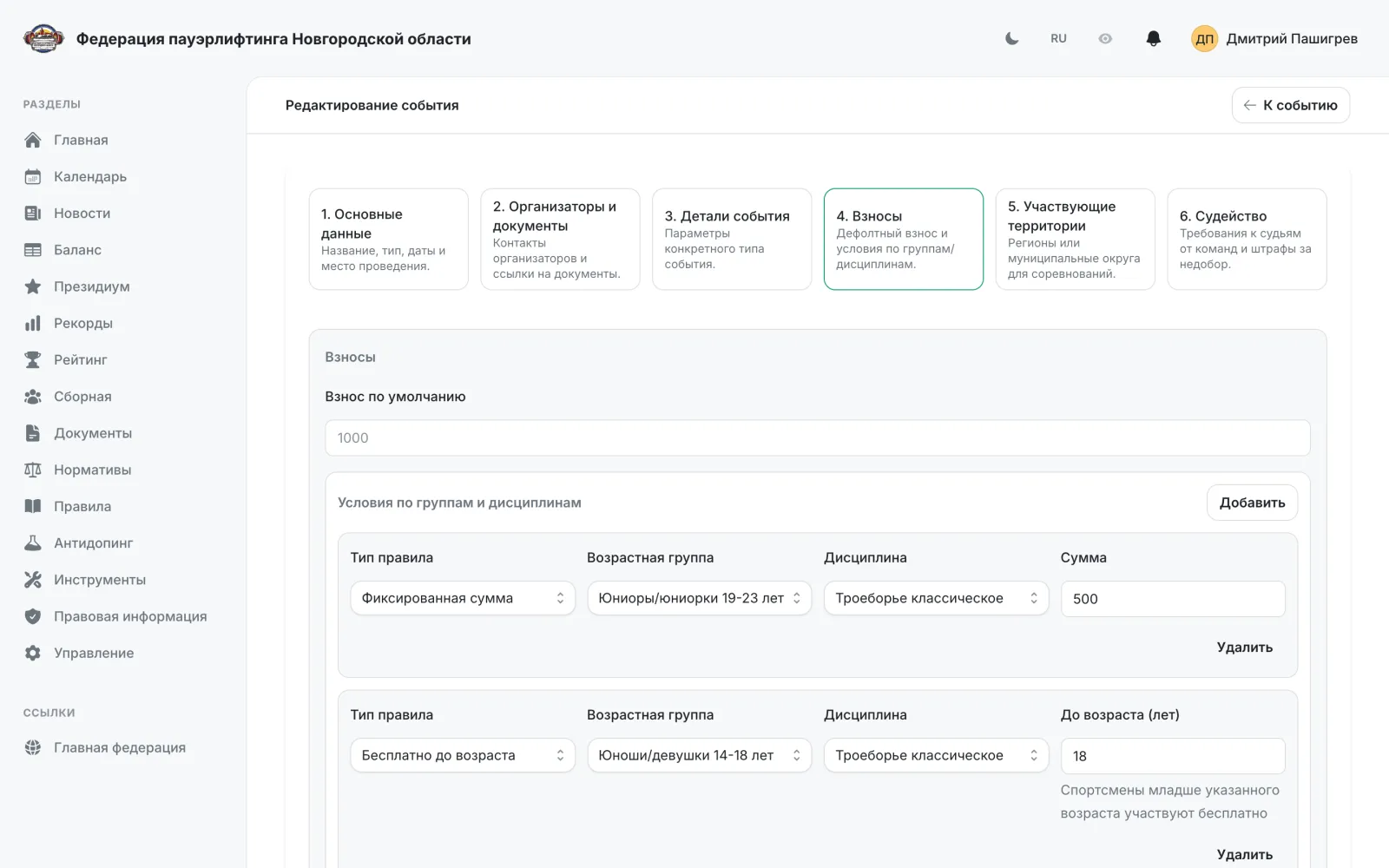
Step 4 “Fees”: the default fee plus an ordered list of rules. A rule is a set of conditions (age from/to inclusive, age group, discipline) and an amount, where 0 means free; the first matching rule from the top applies, and a rule without conditions covers “everyone else”. Reorder rules with the arrows.
- 6
Step 5 “Participating territories”: the regions or municipal districts whose athletes may enter.
- 7
Step 6 “Judging”: whether teams must supply judges, how many athletes count per judging slot, the minimum judge category and the shortfall penalty.
- 8
Click “Save”. You can move between steps freely with “Back” and “Next”, or by clicking a step directly.
Note: All six steps are available only for the “Competition” type. Other event types use the first three steps.
Editing a competition
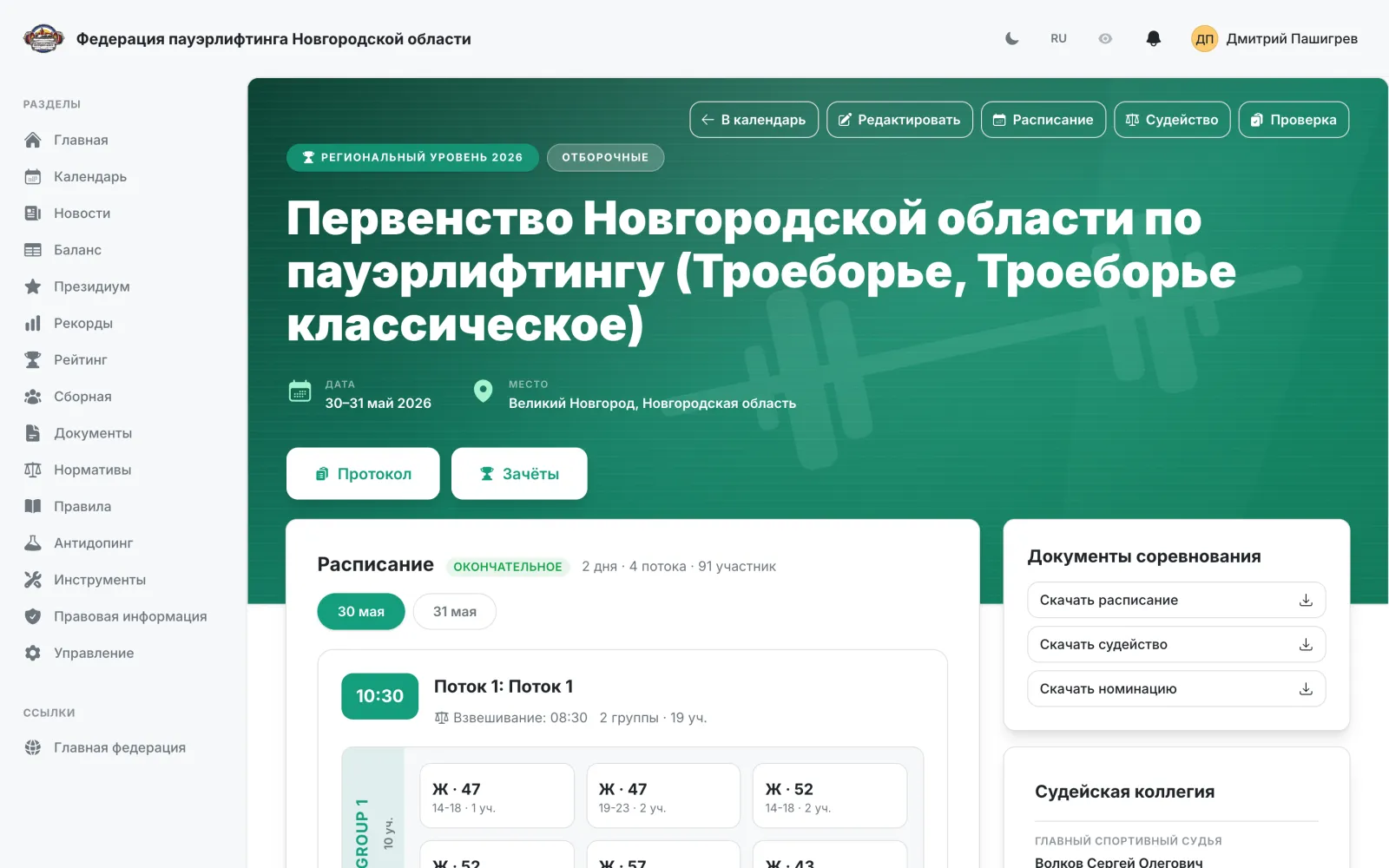
OrganizerThe same wizard as when creating: the same steps, but all of them open at once and saving works from any of them.
- 1
Open the competition page and click “Edit”.
- 2
The steps match the creation wizard and are all open at once: click the one you need on the platform strip instead of walking the wizard through.
- 3
What the platform handles is switched above the step strip: “judge applications only” drops the line-up, fees and admission, “athlete entries only” drops team judging. Settings a mode turns off stay in the form but are not sent to the server.
- 4
Editing has an extra final step, “Insurance”: enable it so the entry wizard gains a policy-purchase step. It cannot be enabled while the federation has no insurance terms configured.
- 5
“Save” works on any step and saves the data of all steps at once; “Back to event” returns without saving.
Note: A regional federation site can only edit events belonging to its own region.
Competition age groups and weight categories
OrganizerWizard step 3: which groups and categories a particular competition contests — from the rulebook or your own.
- 1
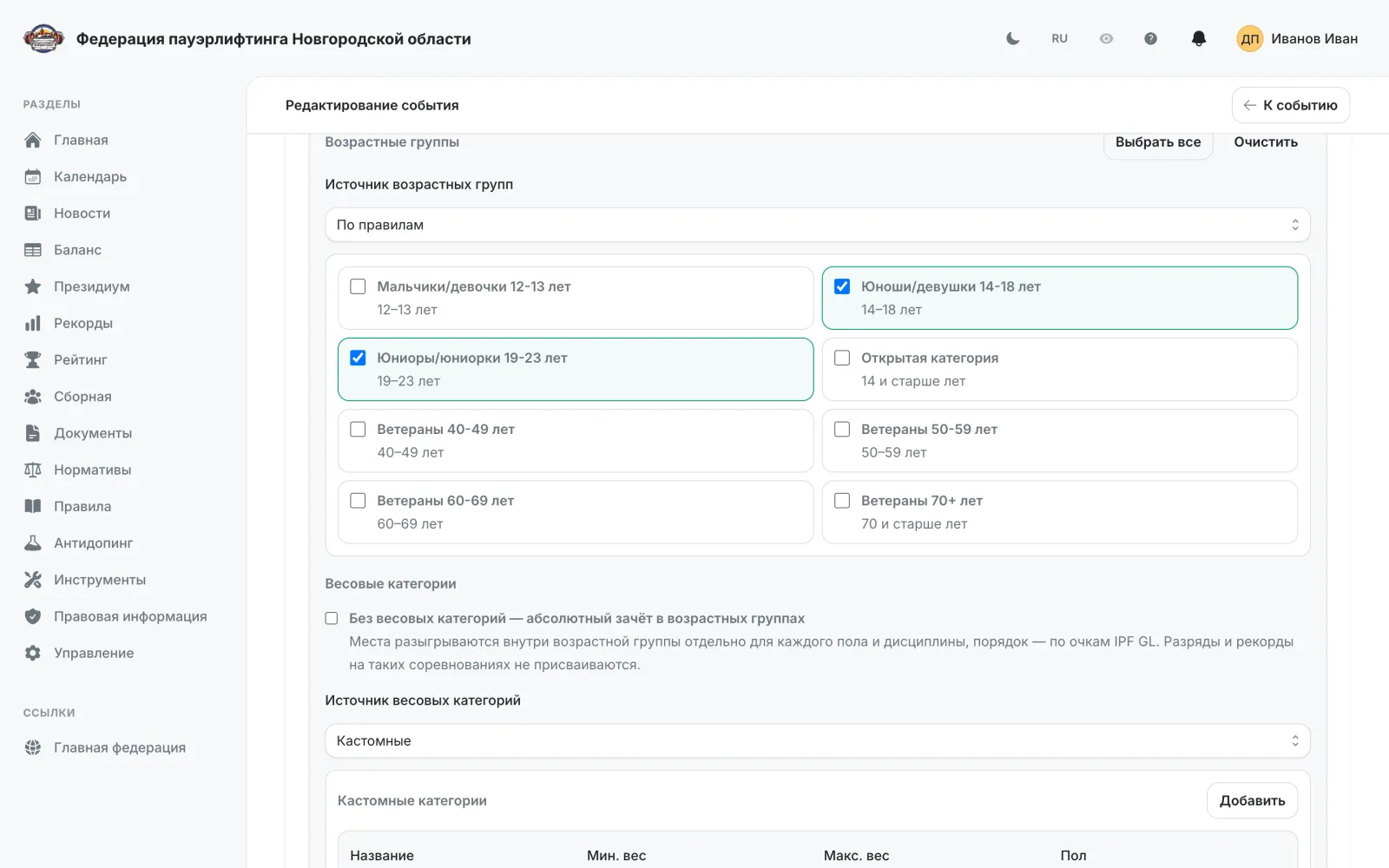
Open the competition, click “Edit” and go to step 3 “Event details”. The “Age groups”, “Weight categories” and “Disciplines” blocks exist only for events of type “Competition”.
- 2
The source defaults to “From the rules”: tick the groups and categories you need from the reference book. The “Select all” and “Clear” buttons sit next to the block heading.
- 3
Weight categories are filtered by the age groups you picked: youth categories only appear once the matching age group is ticked.
- 4
To define your own groups, switch “Age group source” to “Custom” and click “Add”. Fill in “Name”, “Min. age” and “Max. age” in the row.
- 5
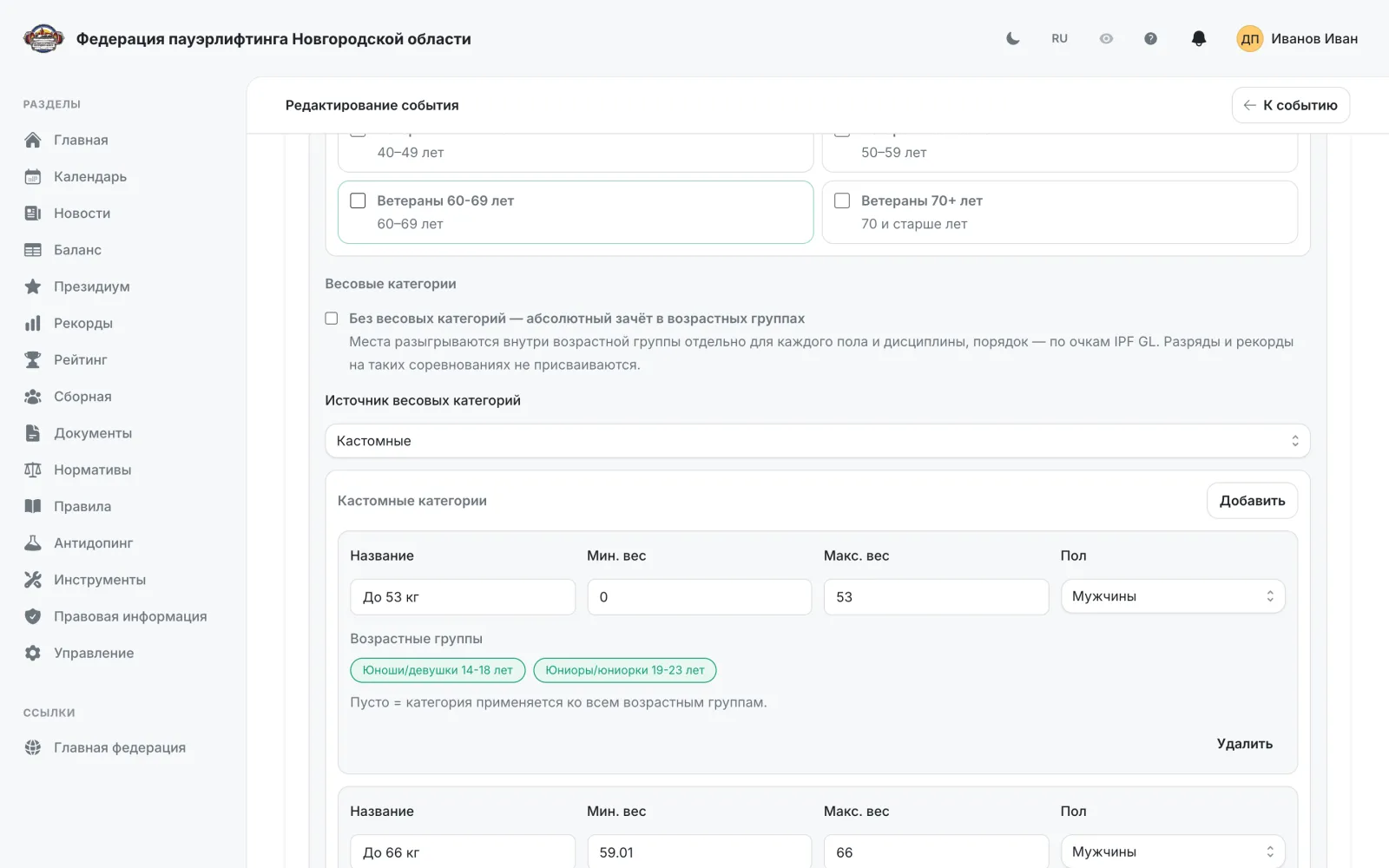
For your own weight categories switch “Weight category source” to “Custom” and add rows: “Name”, “Min. weight”, “Max. weight” and “Gender” — men, women or mixed.
- 6
“Max. weight” is mandatory, so an “over 120 kg” category needs an explicit upper bound — for example 120.01 to 999.
- 7
Under each custom weight category, tick the age groups it applies to. Leaving it empty means the category applies to every group of the competition.
- 8
If weight categories are not contested at all, turn on “No weight categories — absolute scoring within age groups”: places are decided inside the age group separately per gender and discipline, ordered by IPF GL points.
- 9
Click “Save” — data from all steps is saved together. Category errors are shown under the relevant block.
Note: As soon as a single custom category appears, the whole list becomes custom: the rulebook categories you had ticked turn into editable rows. Custom categories are not matched against the reference book — no ranks or records are awarded for them, and protocols and standings show them as a raw code such as “custom-15-16”. Settle the category list before entries open: entries, the schedule and protocols all reference it.
Submitting an individual entry
AthleteFor an athlete who is not a member of a team.
- 1
Open the competition page from the calendar and go to entry submission.
- 2
Step 1 “Choose disciplines”: pick the disciplines, age group and weight category.
- 3
Step 2 “Check and confirm”: review the entry in the preview.
- 4
If the organizer enabled insurance, the “Insurance” step comes next: you can buy a policy right inside the entry — see “Insurance in the entry”.
- 5
The “Fee total” step: the platform calculates the total amount due for participation.
- 6
Confirm submission — the entry goes to the organizer for review.
Note: If you belong to a team, individual submission is unavailable: your captain submits on your behalf. Submission is open only within the entry window set by the organizer.
Submitting a team entry
Team captainThe captain submits a single entry covering every athlete in the team.
- 1
Open the competition and go to entry submission — a captain is taken to the team form automatically.
- 2
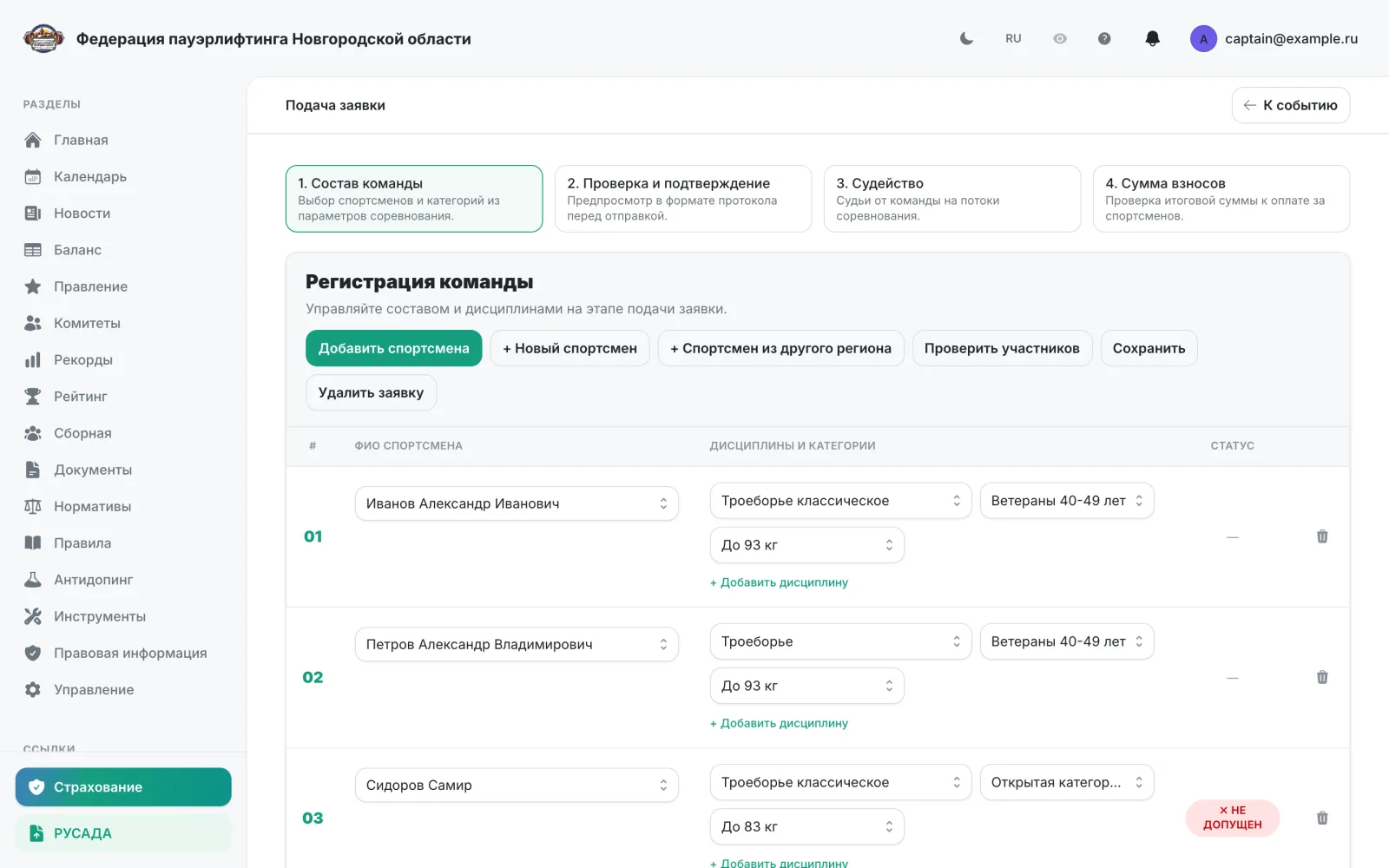
The “Team roster” step: add athletes and set their disciplines, age groups and weight categories.
- 3
An athlete missing from the registry can be proposed right from the entry form.
- 4
The “+ Athlete from another region” button enters an athlete under a temporary residence registration: find them across the country, set their city of residence in your region and attach the registration document — it must be valid on the competition date.
- 5
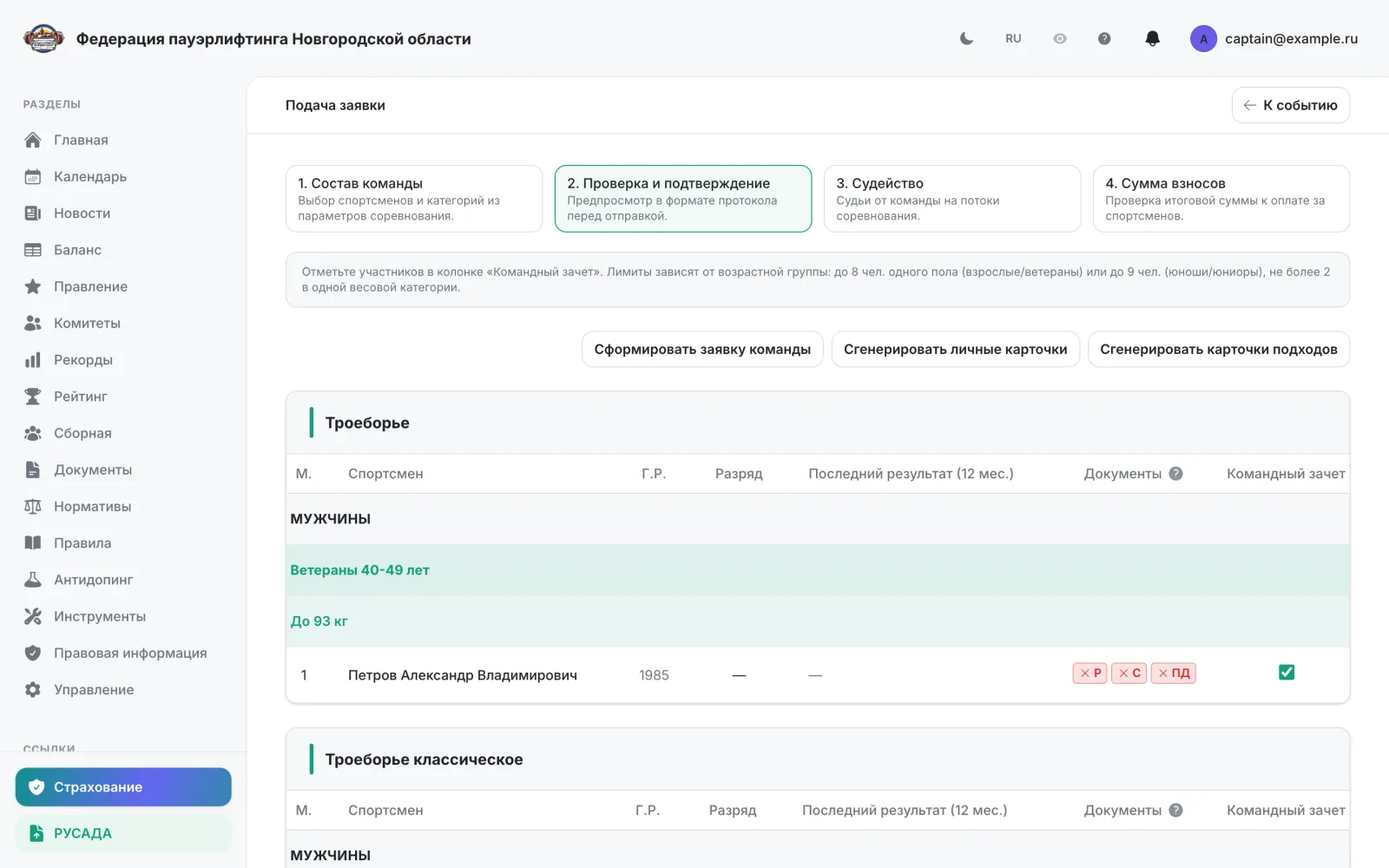
The “Check and confirm” step: review the whole entry. Every athlete carries admission-document marks: RUSADA certificate, insurance and personal-data consent. Green means the document exists, red means it is missing; a mark backed by a document can be clicked to download it.
- 6
The “Judging” step appears if the organizer requires judges from teams — nominate judges for the sessions.
- 7
If the organizer enabled insurance, an “Insurance” step appears before the fees — buy policies for the athletes, see “Insurance in the entry”.
- 8
The “Fee total” step: check the total amount and submit the entry.
Note: The draft entry is saved automatically. It can be edited until the editing deadline set by the organizer.
Insurance in the entry
AthleteTeam captainBuying policies for athletes right inside the entry wizard — when the organizer has enabled insurance for the competition.
- 1
The “Insurance” step appears in the entry wizard before the fees step when the organizer enabled insurance. The top shows the federation's insurance company, the insured amount and the policy period.
- 2
Tick the athletes who need a policy; those already covered carry an “Insured” badge. Check each last name, first name and birth date: they go into the policy.
- 3
Choose where the policies are delivered. “To the submitter's e-mail” — every policy arrives at one address and is paid with a single link. “To each athlete's own e-mail” — each athlete gets a separate order and their own payment link; an e-mail for every athlete is required.
- 4
Fill in the policyholder — an adult who places and pays for the order — plus a contact e-mail and phone.
- 5
Click “Calculate price” — the platform shows the total, split into adults and children.
- 6
Click “Order and pay” and pay via the link. Order statuses are shown in the “Orders” block; an unpaid order can be cancelled.
- 7
After payment the policies are issued automatically and appear among the athletes' personal documents; a policy can be downloaded right from the order.
Note: The insurance step is optional — the entry can be submitted without policies. The organizer enables insurance on the seventh step of competition editing, while the terms — company, insured amount, policy type — are shared by the whole federation and set in the admin panel.
Reviewing entries as an organizer
OrganizerApproving and rejecting entries, and rebuilding the nomination list.
- 1
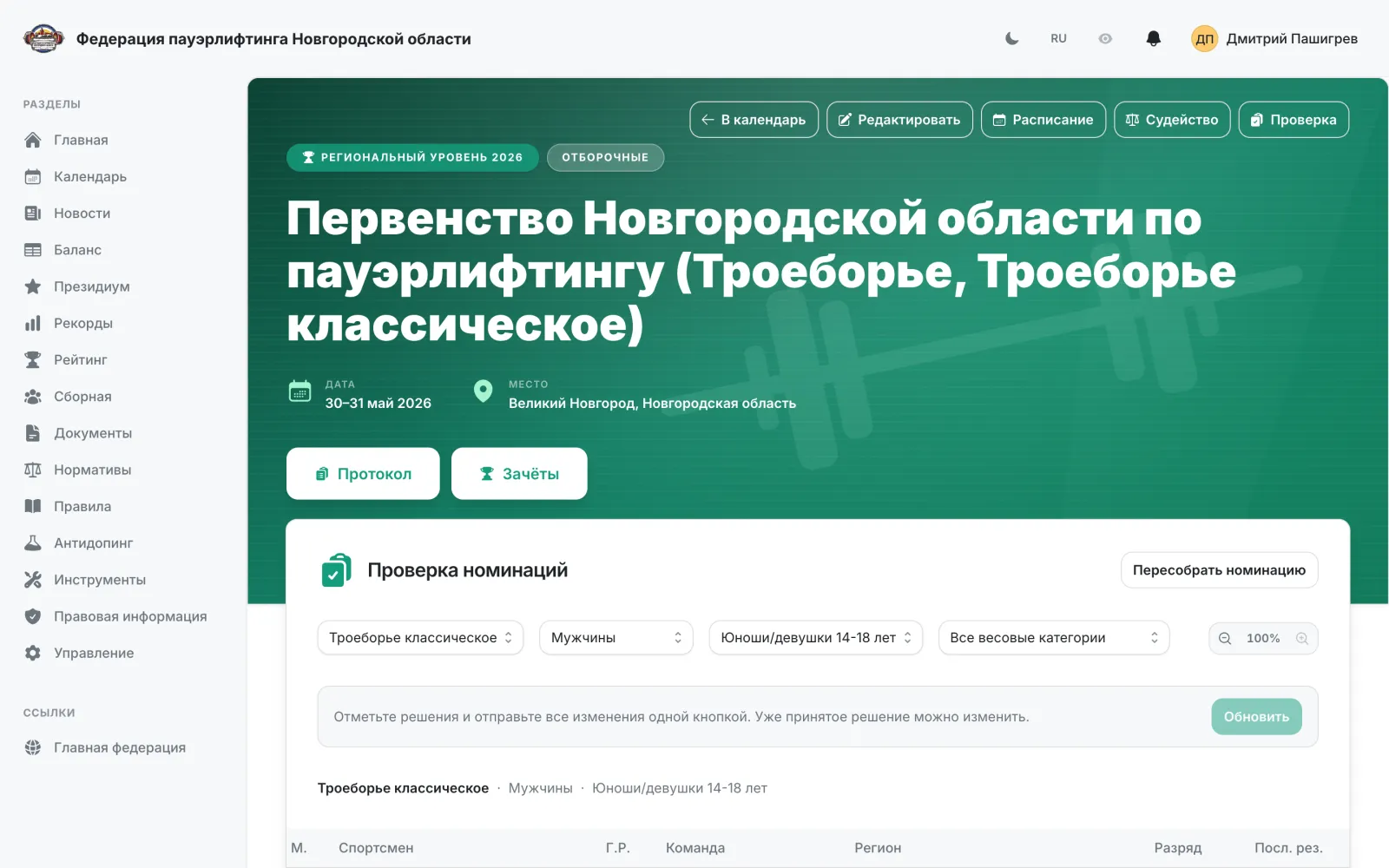
Open the competition and click “Review”.
- 2
Filter the list by discipline, sex, age group and weight category.
- 3
Use the admission-document marks next to every athlete: RUSADA certificate, insurance and personal-data consent. Green means the document exists, red means it is missing; a mark backed by a document can be clicked to download it.
- 4
Mark a decision for every participant — “Approve” or “Reject”.
- 5
Submit all decisions with a single button; a decision already made can be changed.
- 6
After changes, click “Rebuild nomination” to refresh the category distribution.
Note: Rejecting a participant requires a reason, which is shown to whoever submitted the entry.
Schedule and flows
OrganizerFlows, groups, award blocks and distributing nominations across days.
- 1
Open the competition and click “Schedule”.
- 2
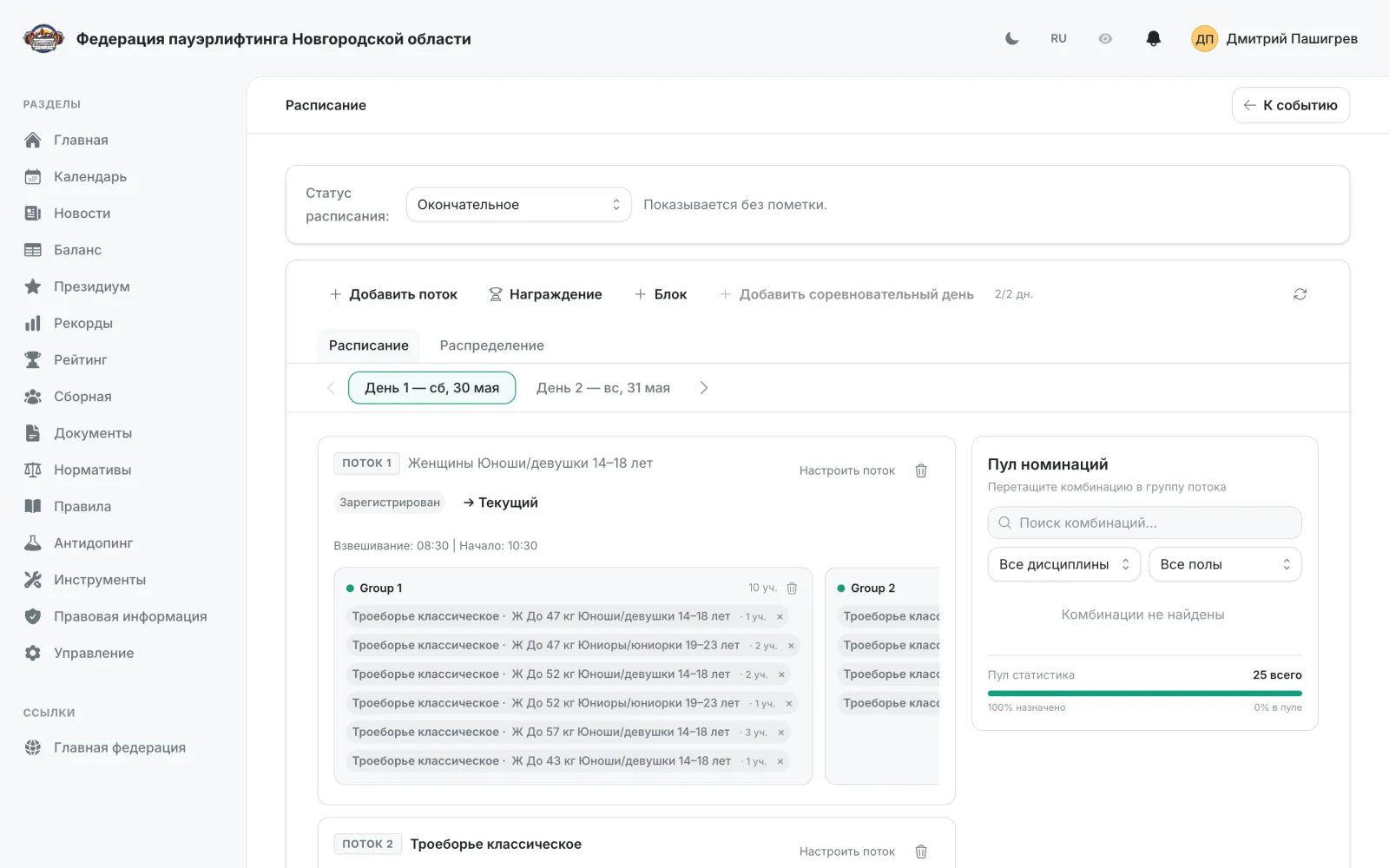
Set the schedule status: draft or final.
- 3
Add flows with “Add flow”, along with award blocks and breaks.
- 4
For each flow set the weigh-in and start times via “Configure flow”.
- 5
On the “Distribution” tab, drag combinations from the nomination pool into flow groups.
- 6
Watch the pool statistics — they show how much of the pool has already been assigned.
Note: Until a schedule status is set, the schedule is not shown on the competition page.
Judging a competition
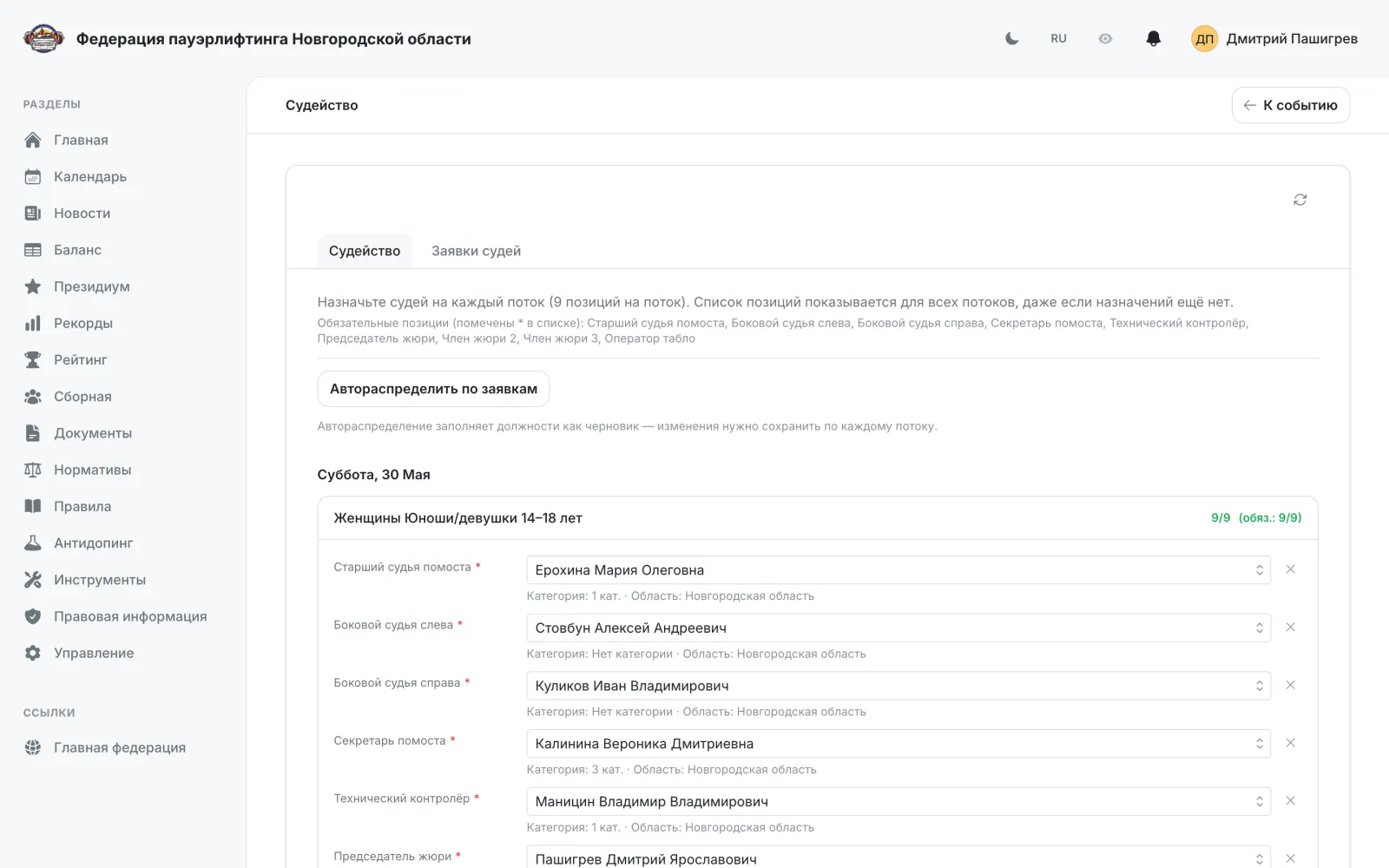
OrganizerJudge nominations from teams and their distribution across flows.
- 1
Open the competition and click “Judging”.
- 2
The “Judge applications” tab lists the judges nominated by teams.
- 3
The “Auto-assign from applications” button distributes judges across flows automatically.
- 4
Check the counters on each flow: they show assigned versus required numbers.
- 5
Click “Save assignments”.
Note: Judging requirements for teams are configured in step 6 of the competition wizard.
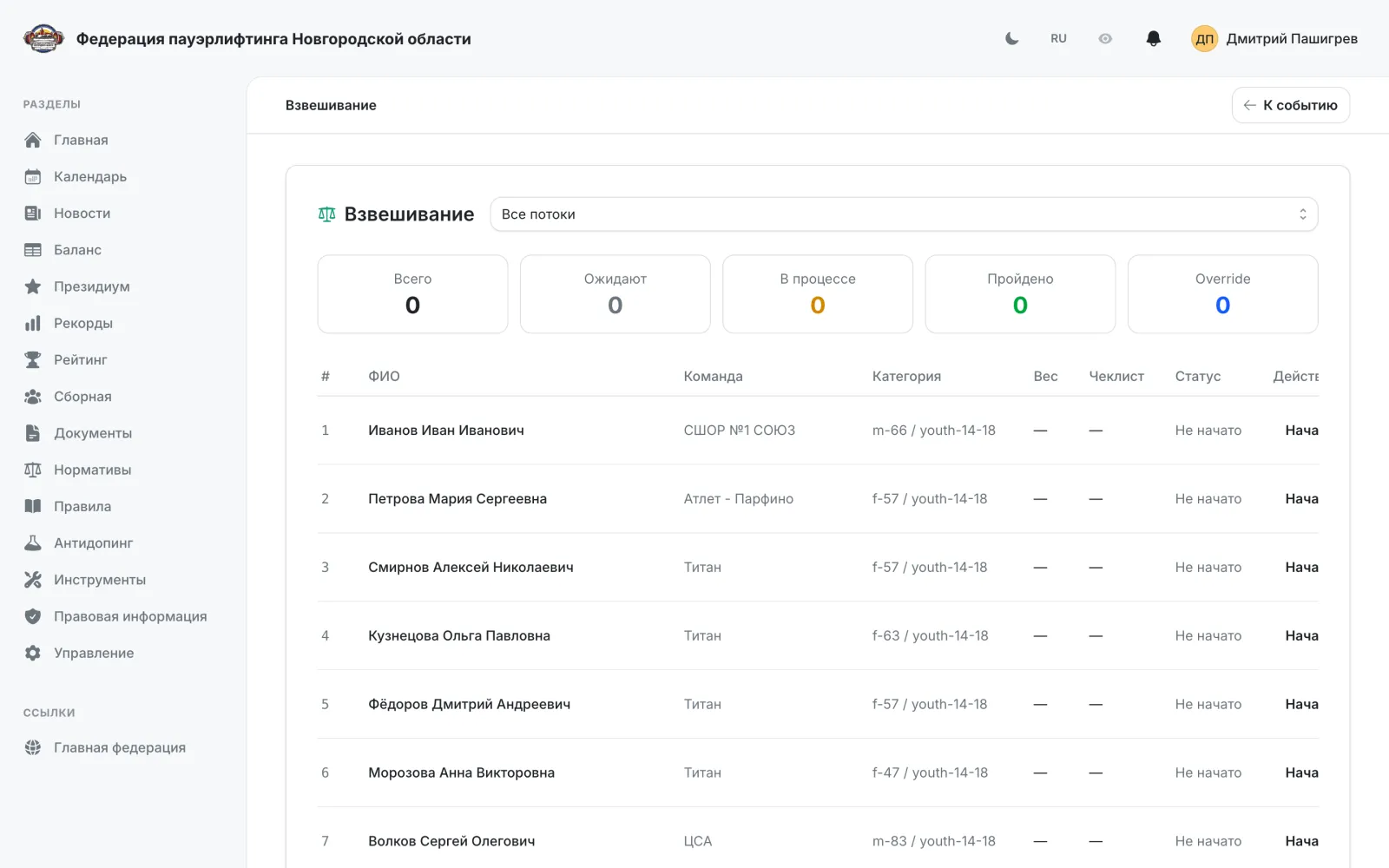
Weigh-in
OrganizerRecording weigh-in results per flow.
- 1
Open the competition's weigh-in page.
- 2
Pick a flow from the “All flows” list.
- 3
Click “Start” to open the weigh-in for that flow.
- 4
Record the participants' weigh-in results.
Note: There is currently no button leading to the weigh-in page in the interface — it opens via a direct link of the form /events/EVENT-ID/weigh-in.
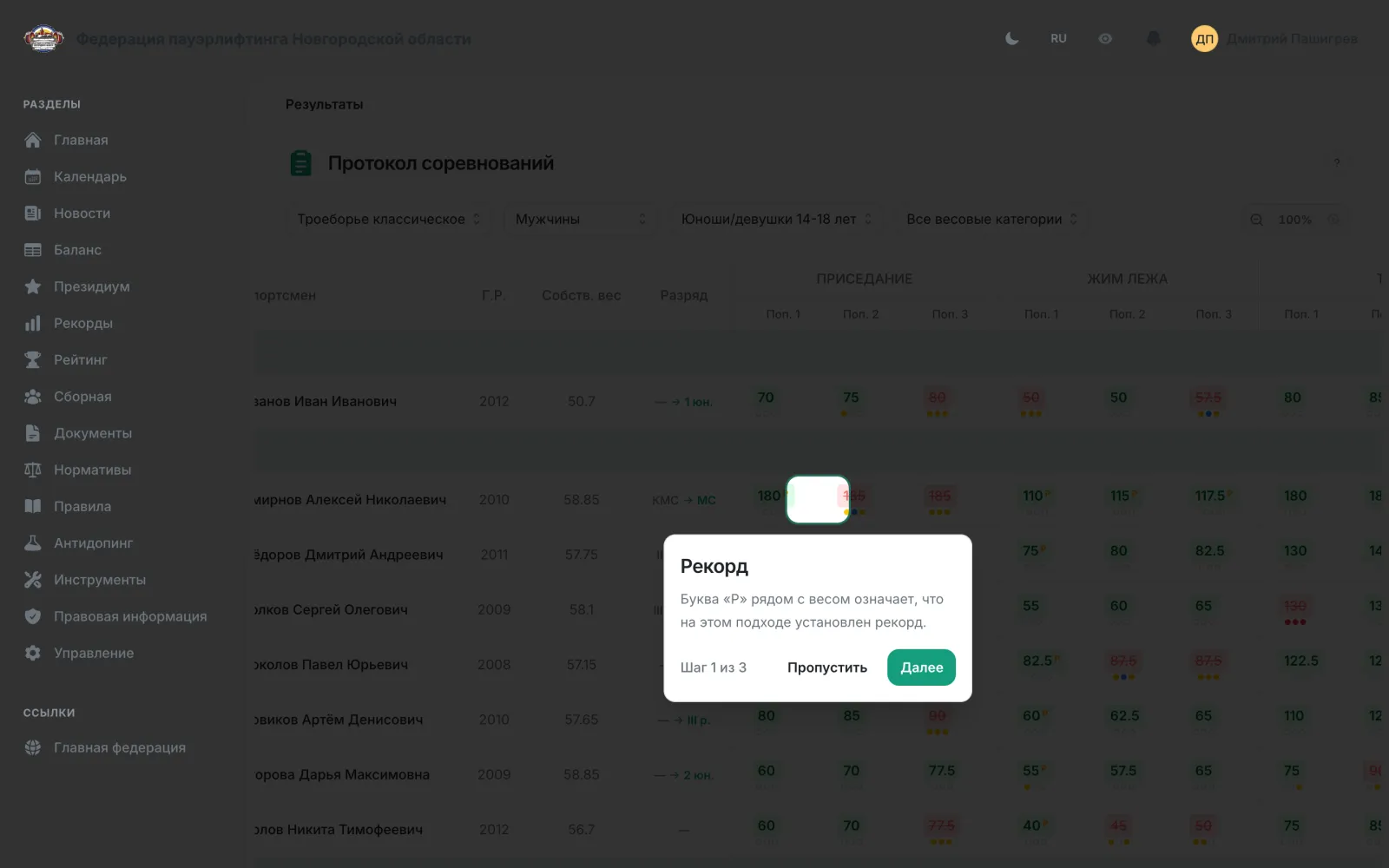
Results, protocols and standings
AthleteTeam captainOrganizerFederation adminViewing nominations and results, exporting PDFs, and the live protocol.
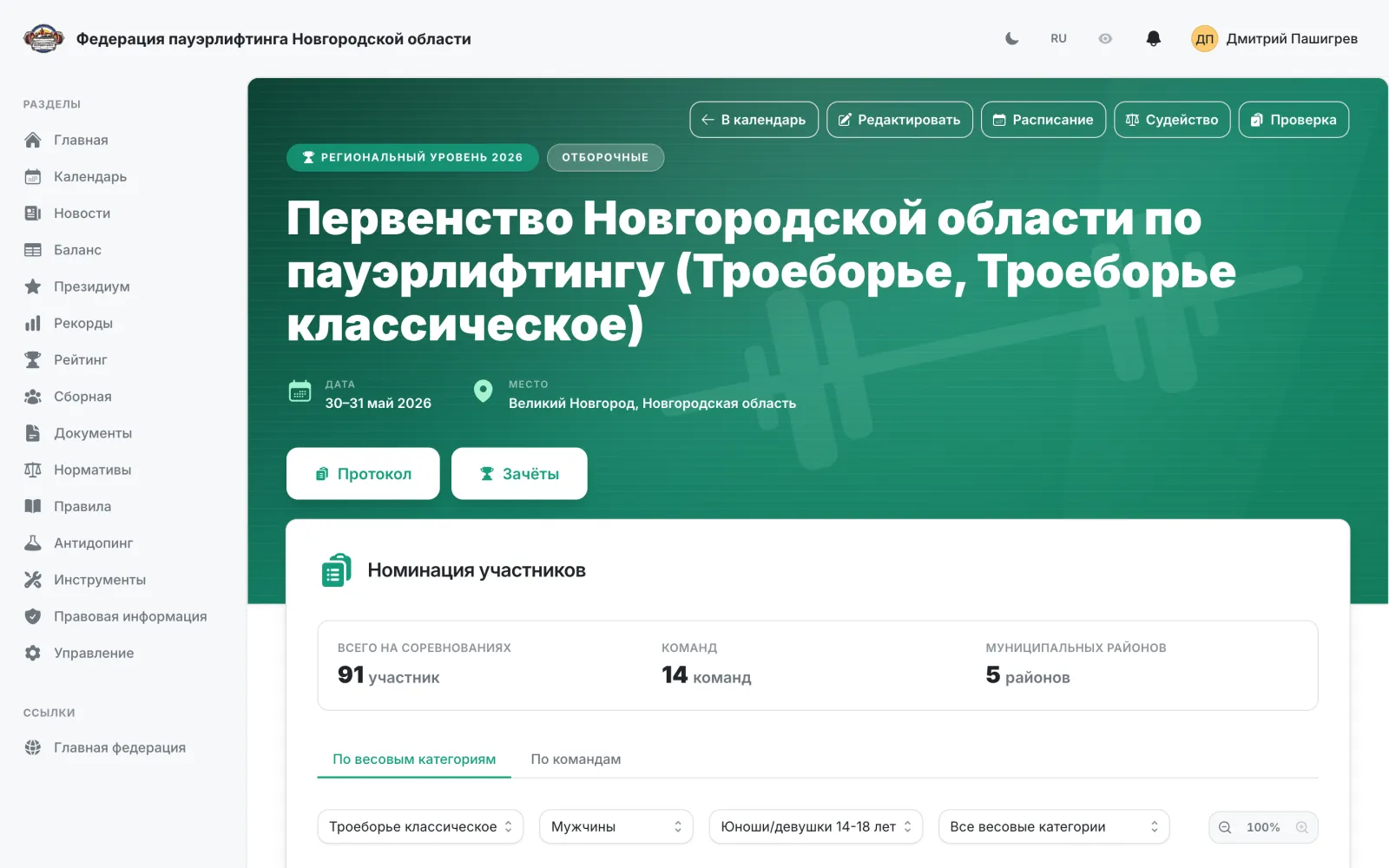
- 1
The competition page gives access to “Protocol” and “Standings”.
- 2
Tables can be scaled with the zoom in and zoom out buttons.
- 3
The “Schedule · PDF”, “Judging · PDF” and “Nomination · PDF” buttons open the ready document in a new tab, where it can be printed or saved.
- 4
The online protocol shows the competition as it happens.
Note: PDF export buttons are visible only to users holding rights for that competition.
Registry: athletes, coaches, judges, teams
Federation adminA single registry of the federation's people and teams.
- 1
Open the registry from the left-hand menu.
- 2
Switch between the “Athletes”, “Coaches”, “Judges” and “Teams” tabs.
- 3
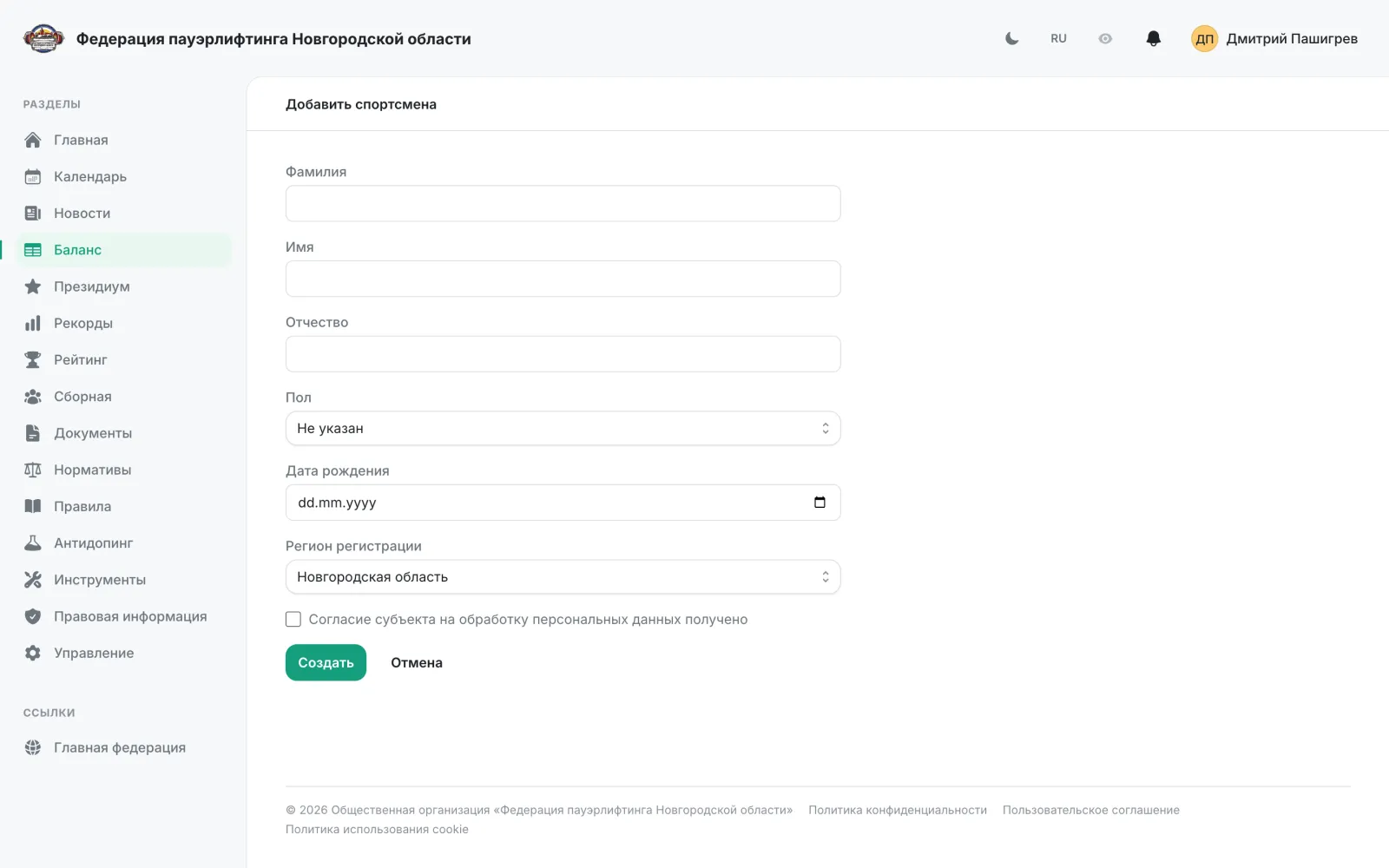
Click “Create” to add a record.
- 4
For an athlete, fill in the surname, first name, patronymic, sex, date of birth and region of registration.
- 5
Confirm that consent to personal-data processing has been obtained, then click “Create”.
Note: The registry listing is open to everyone, while creating and editing records requires the matching rights.

Federation documents
Federation adminRegulations, orders and other files published on the site.
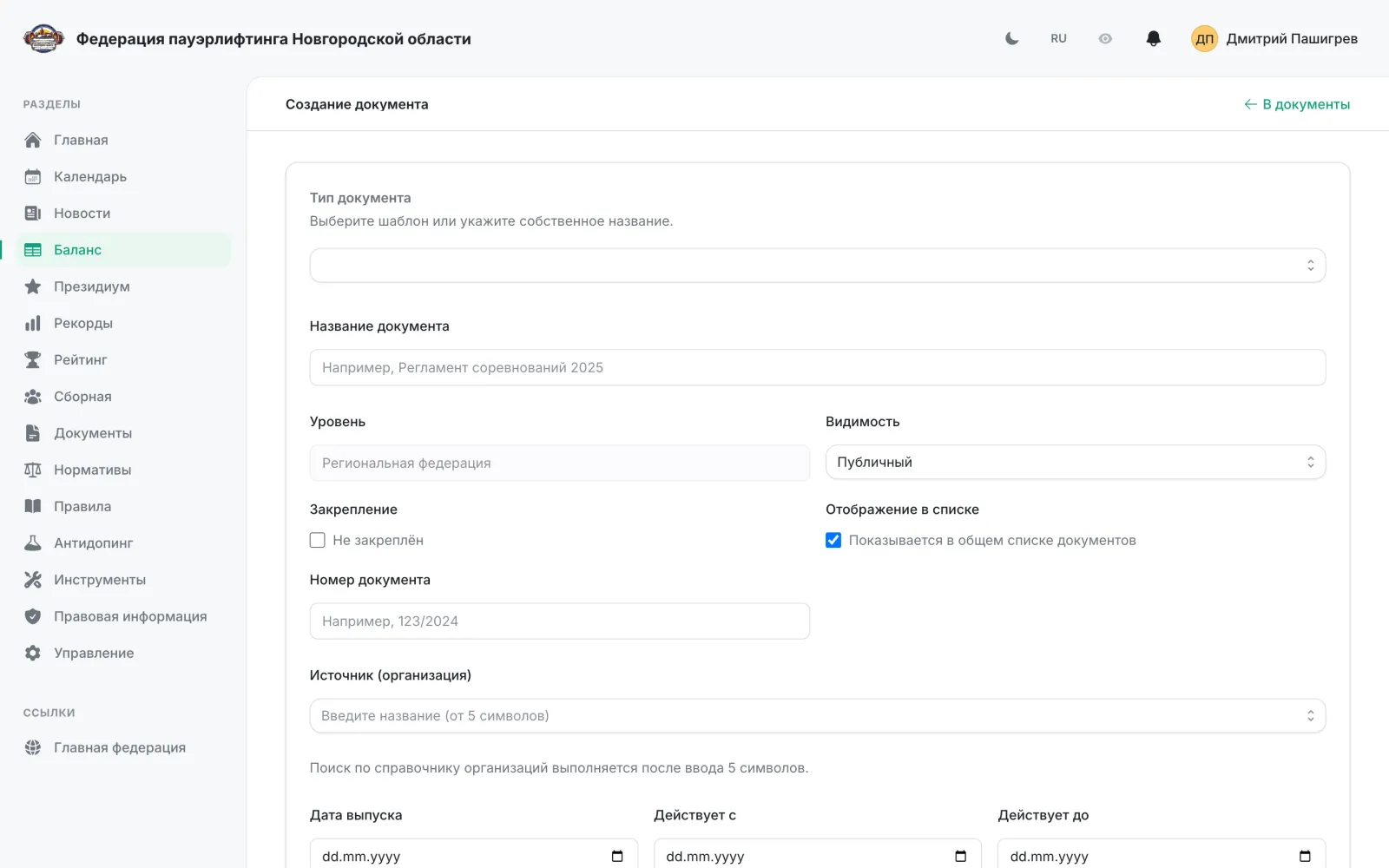
- 1
Open “Documents” in the left-hand menu.
- 2
Click the add-document button.
- 3
Fill in the title, level, visibility, document number, issuing body and validity dates.
- 4
Upload the file — PDF, DOCX, XLSX and ZIP are supported.
- 5
Save the document.
Note: The “Visibility” field decides whether the document is public. Creating, editing and deleting documents are governed by separate rights.
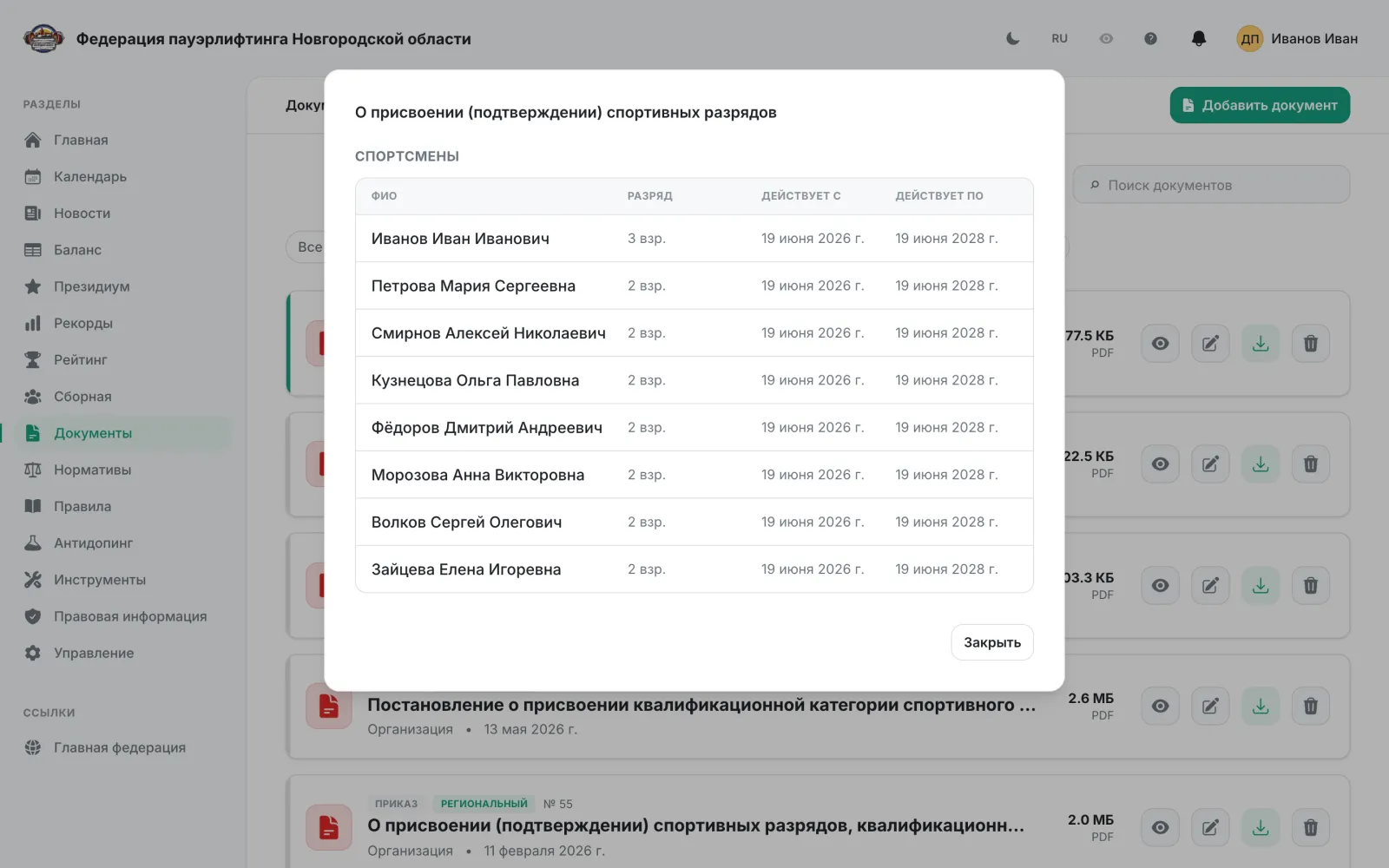
Rank assignment order
Federation adminUploading an official order and using it to award sports ranks and referee categories.
- 1
Open “Documents” and click “Add document”.
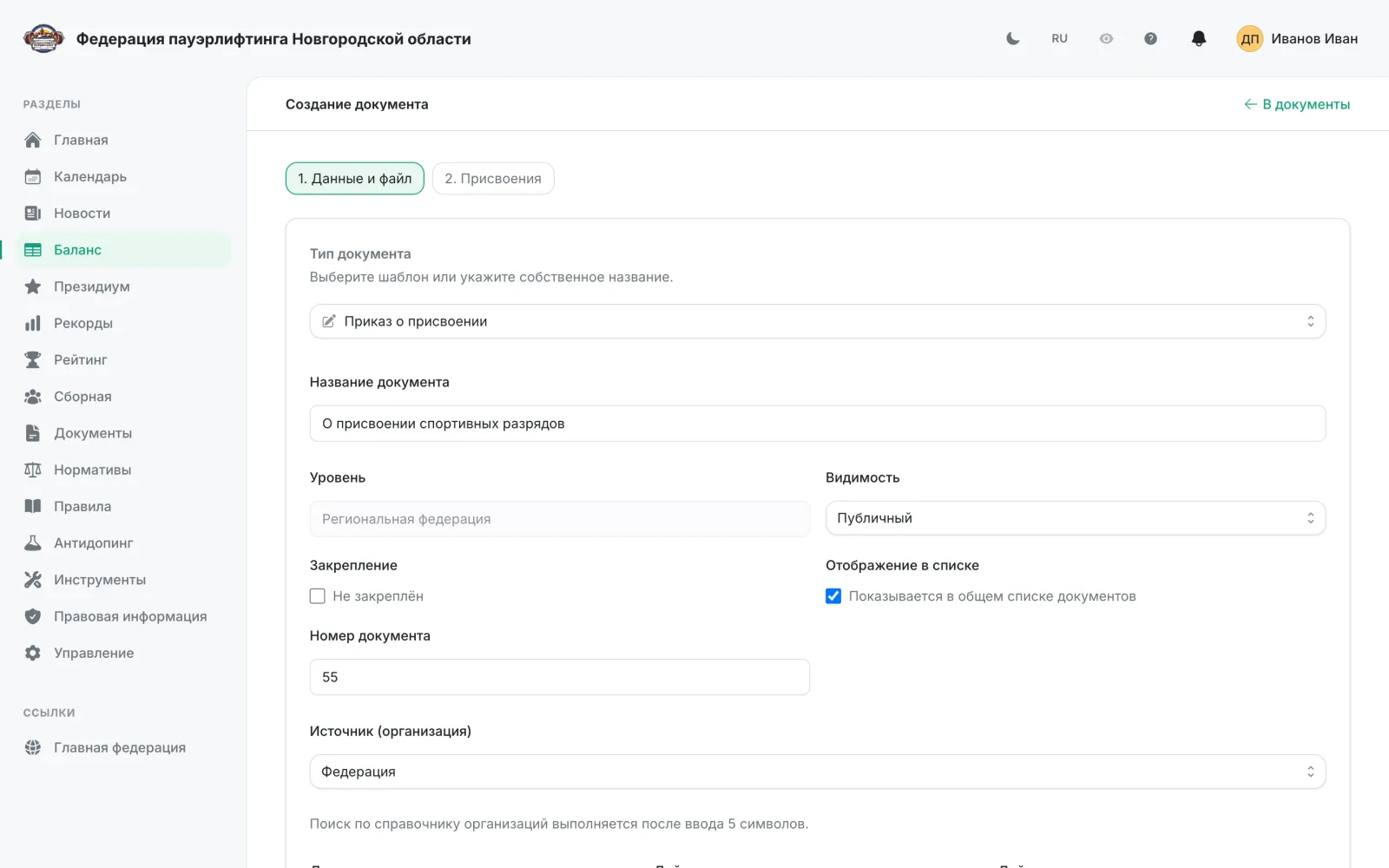
- 2
Pick “Assignment order” in the “Document type” field — the form turns into a two-step wizard: “1. Details and file” and “2. Assignments”.
- 3
Fill in “Document title” and “Document number”. The “Level” field is taken from the federation site and cannot be edited.
- 4
Set “Source (organization)” — the body that issued the order. The lookup starts after 5 characters; an order cannot be saved without an organization.
- 5
Fill in “Issued on” and, if needed, “Valid from” and “Valid to”: these dates drive how long the awarded ranks stay valid.
- 6
Upload the order file — PDF, DOCX, XLSX or ZIP up to 20 MB. Until a file is uploaded the document stays a draft and cannot be downloaded.
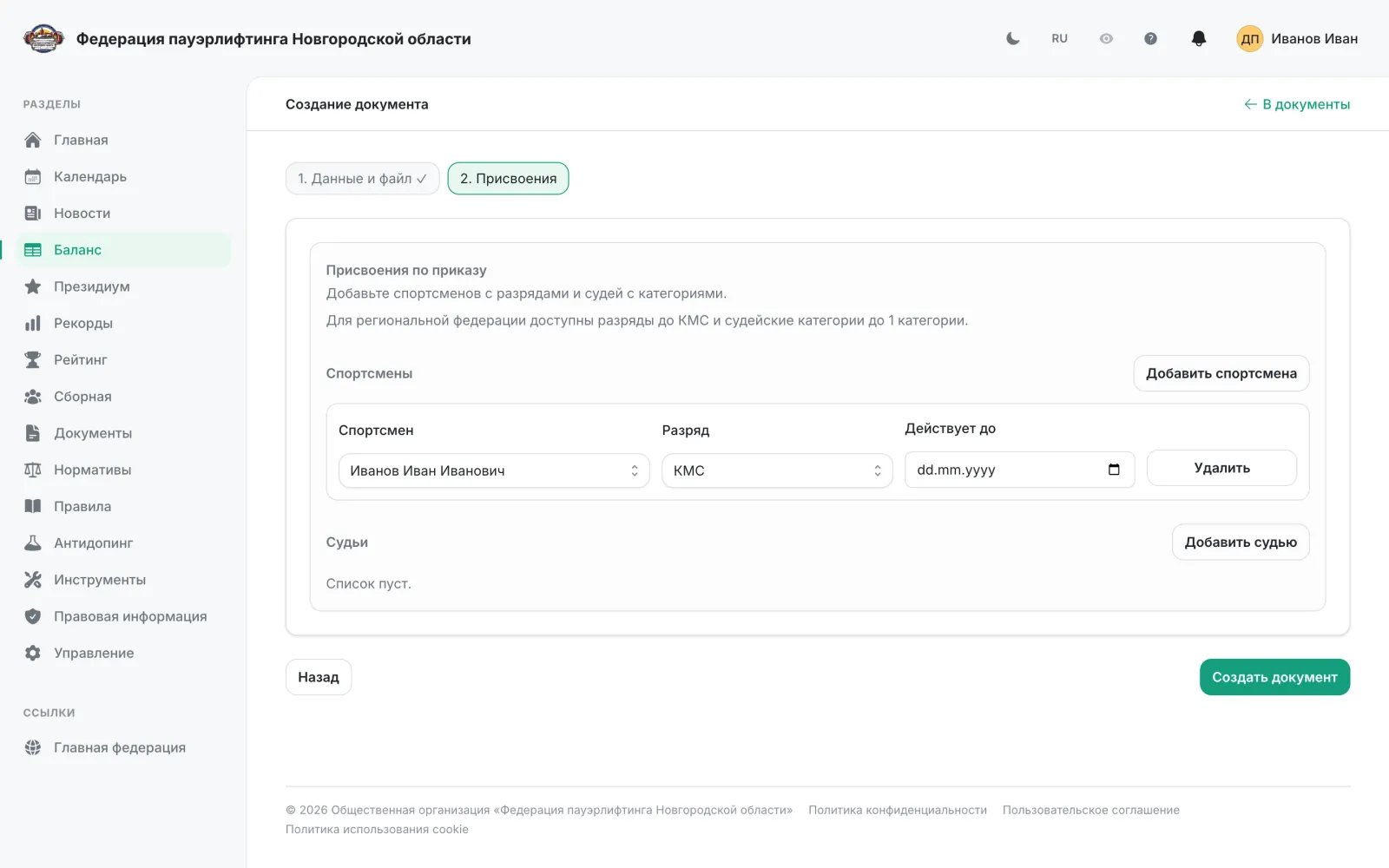
- 7
Click “Next” to reach step “2. Assignments”. Click “Add athlete”, search the person by name (5 characters or more) and pick a “Rank”.
- 8
“Valid to” is filled in automatically from the rank's validity period. For MS, MSMK and ZMS it stays empty and disabled — those titles never expire; for youth ranks the date is capped at the day before the athlete turns 18.
- 9
Referee categories are added the same way, with “Add judge”. An order must carry at least one assignment, to an athlete or to a judge.
- 10
Save the document. Ranks are applied to athletes automatically: they show up on the athlete card and in the “Rank/title” column of the registry, and the order card gains an icon for viewing its assignments.
Note: A regional federation can award ranks up to CMS and referee categories up to 1st category; MS and above are awarded by the national federation. Saving an order again fully replaces its assignment list and re-applies every rank, and an order dated earlier than an already effective assignment is ignored. The “Sports rank/title” field on the athlete card is a separate manual path: it creates no order and leaves no entry in the rank history.
Records
Federation adminThe federation record registry: card view, the management table, adding, editing and unpublishing records.
- 1
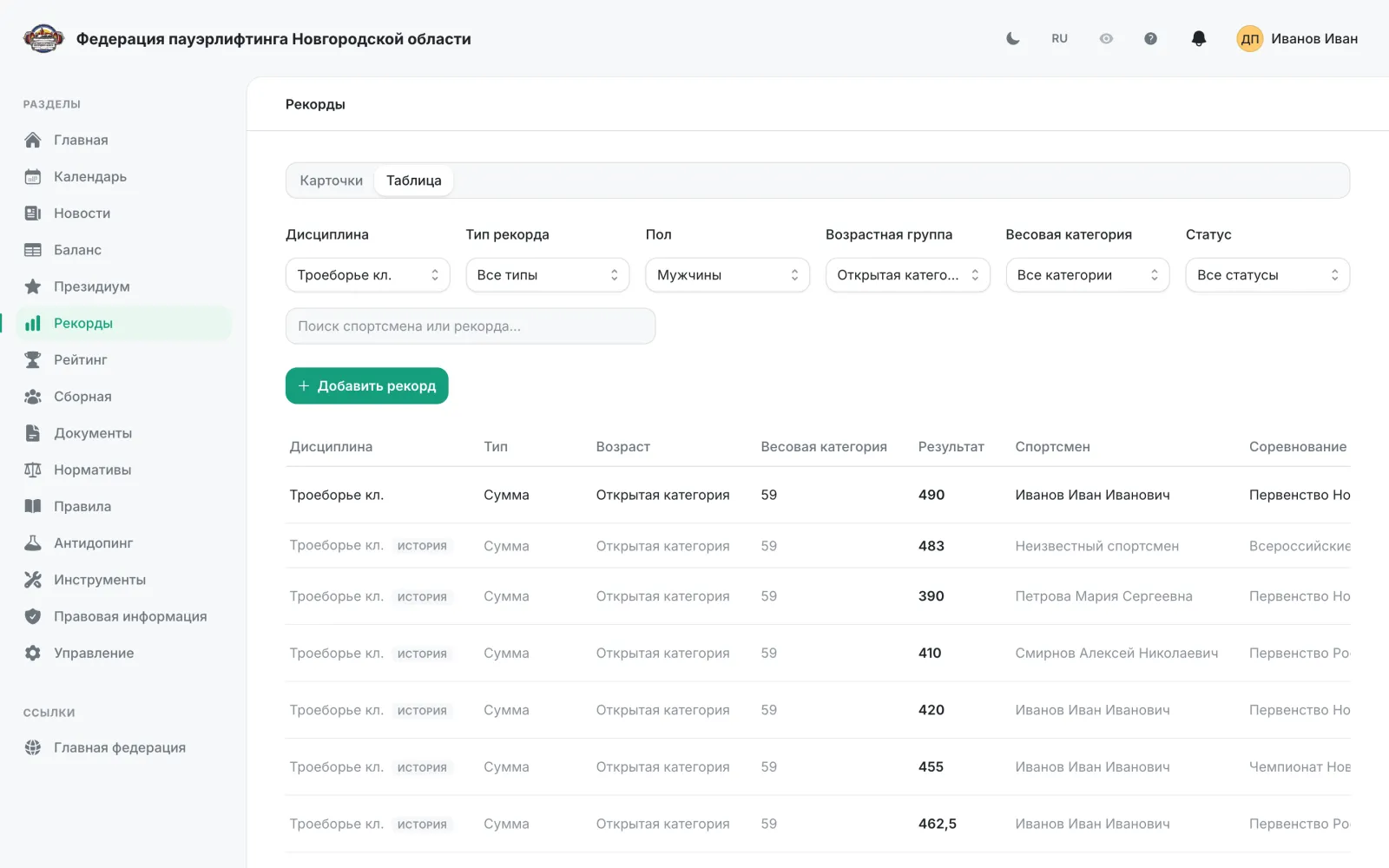
Open “Records” in the left menu. By default records are shown as cards — by gender, discipline, age group and weight category.
- 2
If you may manage records, a “Cards” / “Table” switch appears above the list. The table is the working view: it shows every entry, including superseded and rejected ones.
- 3
Filter the list by discipline, record type, gender, age group, weight category and status. The search box matches the athlete's surname and the record value.
- 4
Statuses are “Current”, “Pending verification”, “Superseded”, “Draft” and “Rejected”. Rows tagged “History” are past records of the same category and can be edited too.
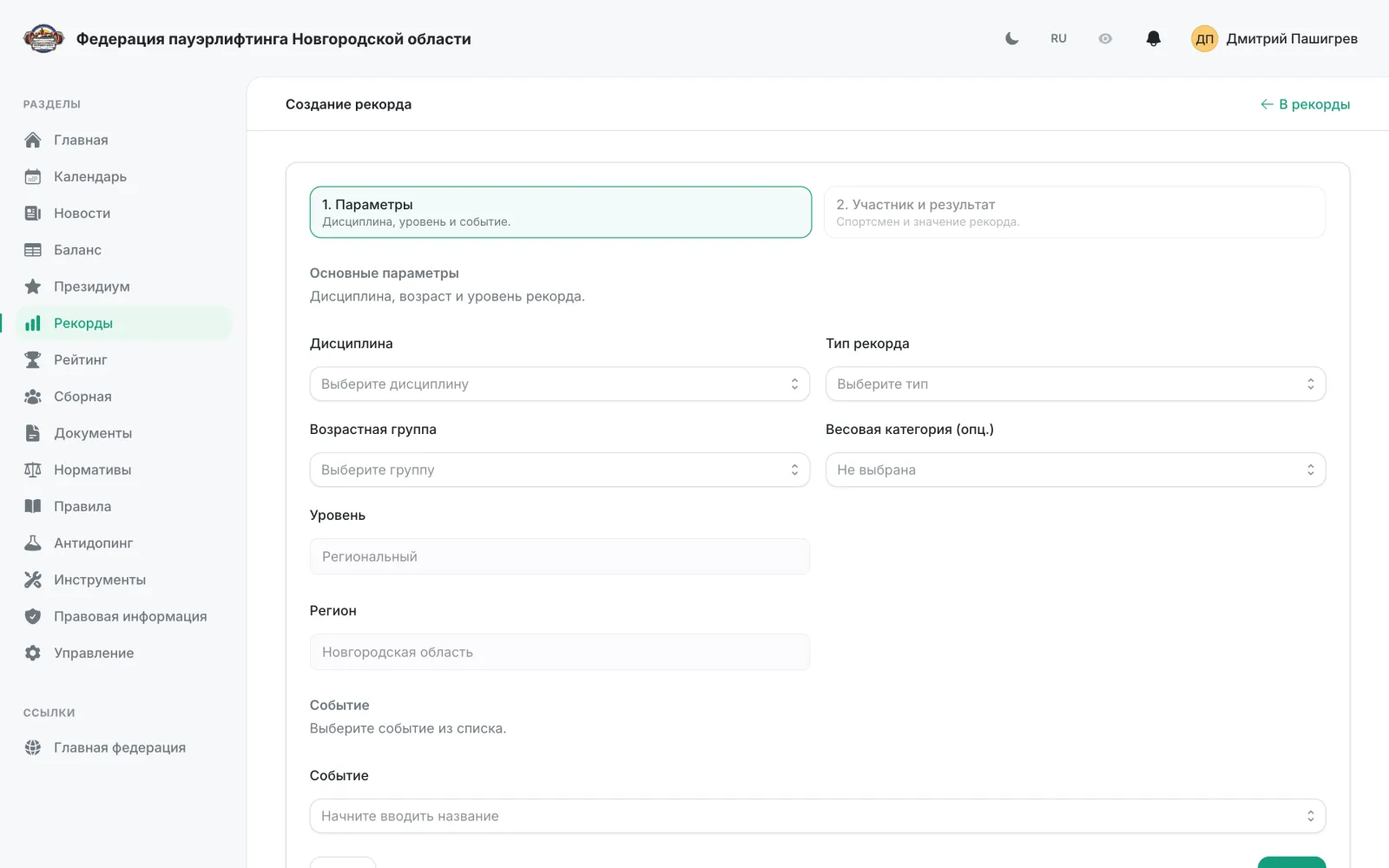
- 5
Click “Add record”. In the card view the same link opens a two-step wizard, in the table a dialog — the fields are identical.
- 6
Fill in the discipline, record type, age group, weight category (optional) and subtype. “Level” and “Region” are taken from the federation site and cannot be edited.
- 7
Pick the event and the athlete — both lookups search after 5 characters, within the site's region or country.
- 8
Choose the “Result type” — a number, a time in seconds or milliseconds, or text — and enter the value itself. A comma works as the decimal separator.
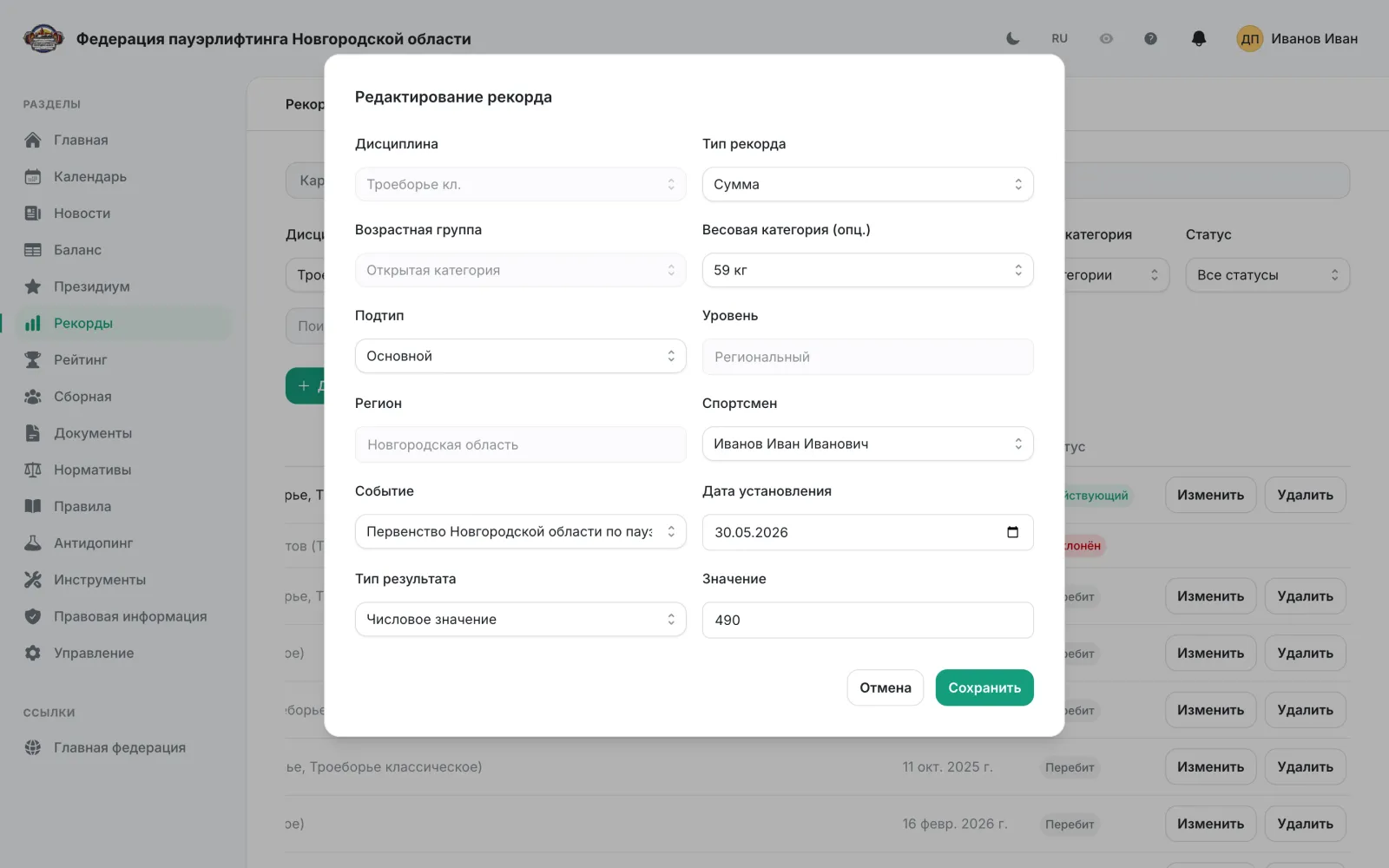
- 9
“Edit” on a table row opens the same form. Discipline, age group, level and region are locked while editing, but a “Date achieved” field appears.
- 10
“Delete” unpublishes the record: the entry moves to the “Rejected” status but stays in the database and in the change history.
Note: Deleting the current record does not restore the previous one — the category is left without a current record until a new one is added. Records in the “Rejected” status and world records cannot be edited. News about regional records is published automatically when a protocol is imported from the desktop application.
National team
Federation adminThe squad shown on the public national-team page.
- 1
Open “National team” in the left-hand menu.
- 2
Add an athlete to the squad with the add button.
- 3
Remove a member from the squad when needed.
Federation management
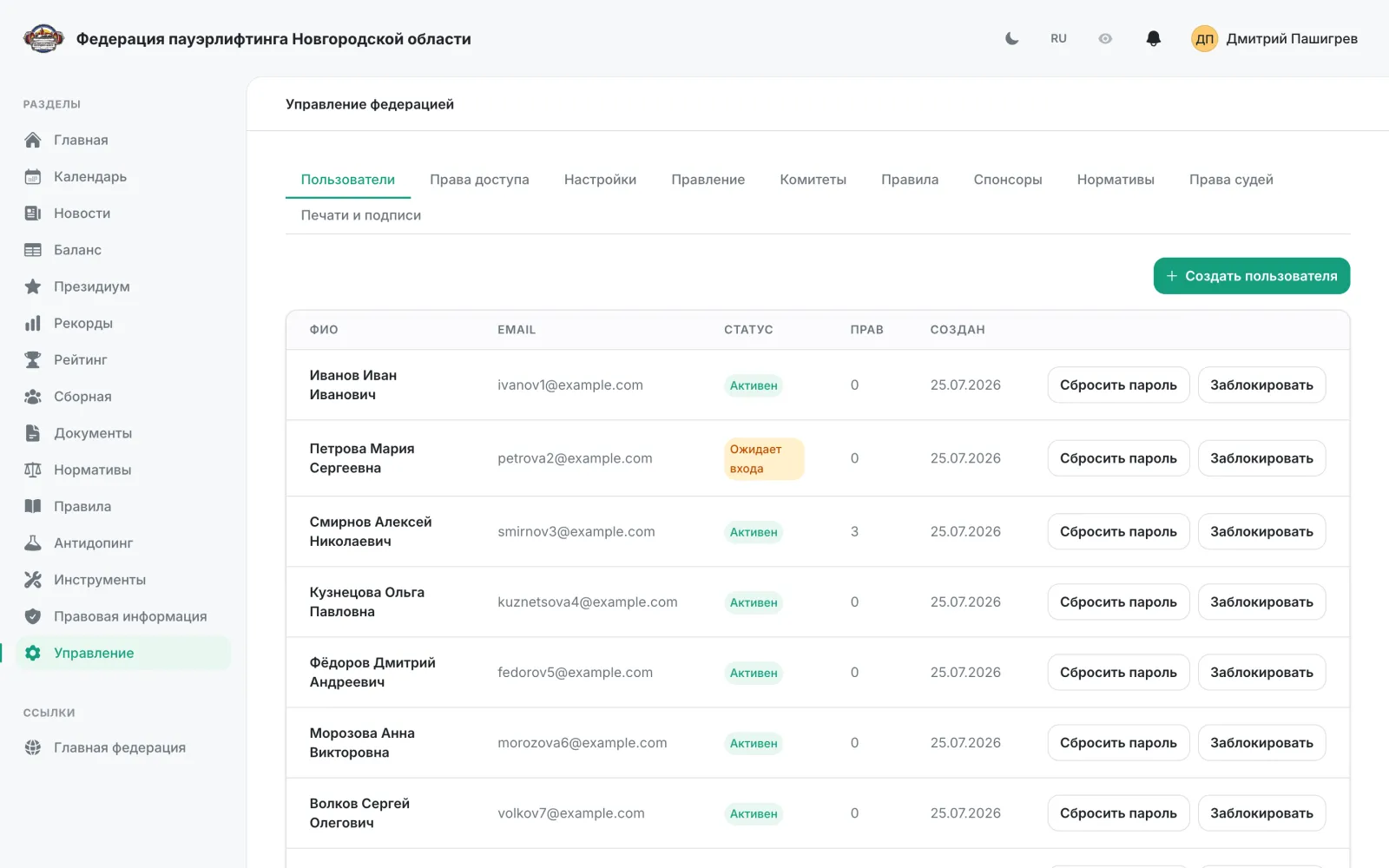
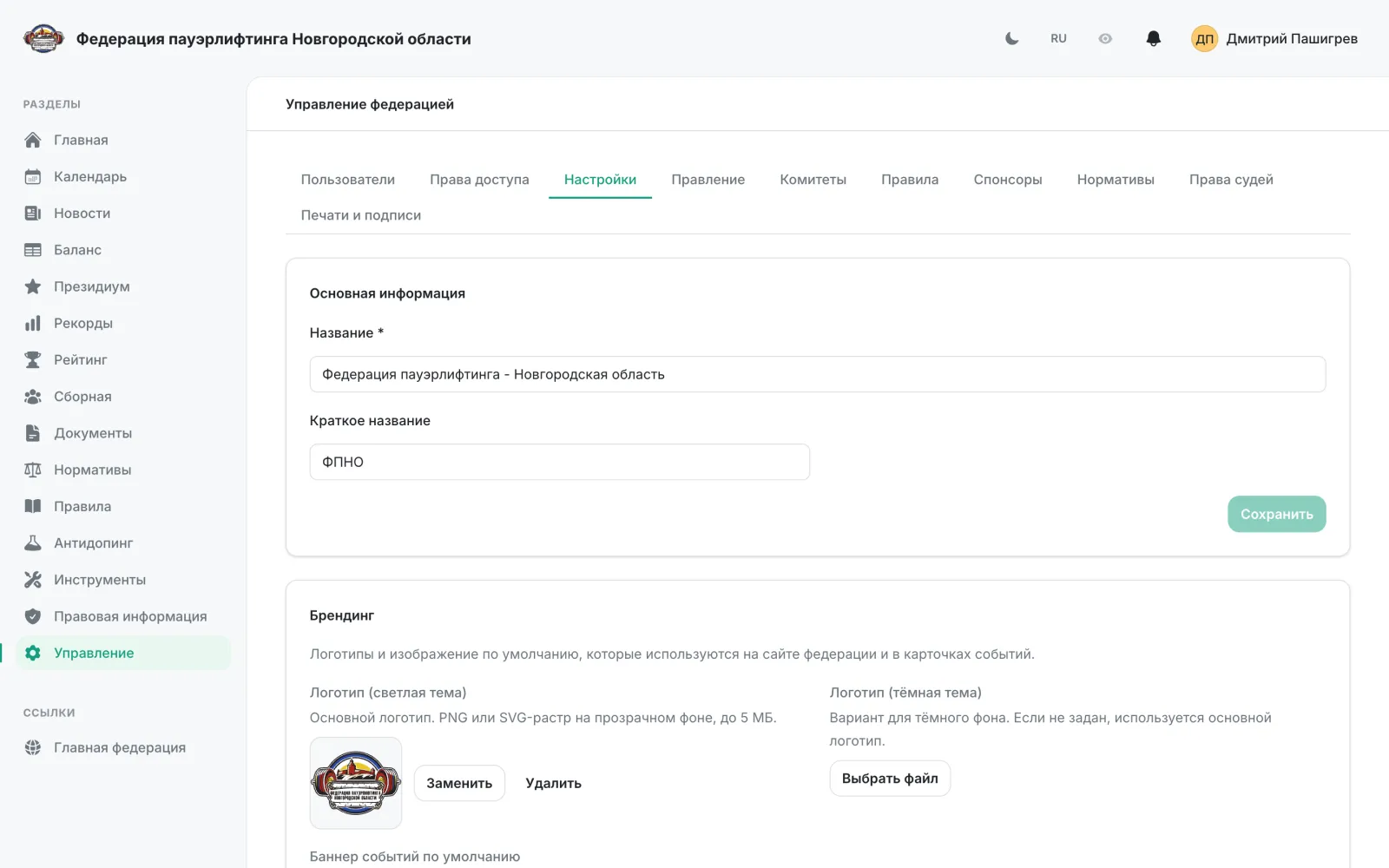
Federation adminThe management section — ten tabs of federation settings.
- 1
“Users” — creating users, resetting passwords and blocking accounts.
- 2
“Permissions” — the rights matrix for each federation user.
- 3
“Settings” — name, contacts, logos, event banner and entry deadlines.
- 4
“Board” — the federation board members.
- 5
“Committees” — the coaches council, the anti-doping commission and the disciplinary and judges committees.
- 6
“Rules” — the rules of the sport.
- 7
“Sponsors” — sponsors and partners shown on the site.
- 8
“Standards” — classification standards.
- 9
“Judge rights” — the set of rights that can be granted to judges for events.
- 10
“Seals and signatures” — the federation seal and the president's signature used in generated documents.
Note: The “Standards” and “Judge rights” tabs are available only when the federation has a sport assigned. The deadlines on the “Settings” tab define how many days before the start entries open and editing closes.
Rules, standards and anti-doping
AthleteTeam captainOrganizerFederation adminReference sections open to every visitor.
- 1
“Rules” — the full text of the sport's rules with section search.
- 2
“Standards” — classification standards by discipline.
- 3
“Anti-doping” — information, the commission roster and the list of disqualified athletes.
- 4
“IPF calculator” — IPF GL points from a total and bodyweight.